

Well, when it comes to the topic of headsets and their top-level performance, nothing can beat Yealink headsets because they are trusted worldwide for delivering crystal clear communication, smooth wireless connectivity, and above all, aesthetics to your workplace. Whether it’s for hybrid work, call centers, or businesses of different levels and their collaborations, Yealink provides a range of dependable gadgets as incredible solutions. For the best options, check out Yealink headsets online at Spoglink.
But like any other tech device, even the most advanced headsets may sometimes bump into issues. So, starting from audio issues like “Yealink headset no sound,” to charging troubles, or sometimes even the need to reset a Yealink headset, knowing how to troubleshoot can literally save your downtime and frustration.
Common Yealink Headset Issues and How to Fix Them
1. Audio Issues
- Problem:
Yealink headset not working, no sound, or distorted audio.
- How to Fix it:
- Check audio settings on your device (Windows, macOS, or mobile).
- Reconnect the Bluetooth or USB dongle.
- Run a Yealink headset firmware update.
- Make sure the headset is the default communication device in settings.
- Check audio settings on your device (Windows, macOS, or mobile).
2. Charging Problems
- Problem:
Headset not charging, slow charging, or battery draining too quickly.
- How to fix it:
- Confirm that you’re using the original charging cable/stand.
- Clean the charging port for dust or debris.
- Try another USB port or power adapter.
- If continued, consider a reset Yealink headset or battery replacement.
- Confirm that you’re using the original charging cable/stand.
3. Connectivity Issues
- Problem:
Bluetooth won’t pair, the DECT signal drops, or the USB dongle is not detected.
- How to fix it:
- Clear old Bluetooth pairings and re-pair from scratch.
- Ensure USB dongle drivers are up-to-date.
- Move closer to your connected device to avoid interference.
- Restart both the headset and the paired device.
- Clear old Bluetooth pairings and re-pair from scratch.
4. Firmware or Software Glitches
- Problem:
The Headset keeps disconnecting or behaves unpredictably.
- How to fix it:
- Run a Yealink headset firmware update through Yealink USB Connect.
- Restart your PC/laptop after updates.
- Keep your device’s operating system updated for the best compatibility.
- Run a Yealink headset firmware update through Yealink USB Connect.
5. Resetting Your Yealink Headset
- Incase:
If all else fails, a factory reset is often the quickest solution.
- Steps:
- Power off the headset.
- Hold down the power/multi-function button for 8–10 seconds.
- Re-pair the headset with your device.
- Power off the headset.
Step-by-Step Troubleshooting Guide
5 Quick Fixes for Yealink Headsets
- Check your device connections & cables.
- Adjust audio & mic settings.
- Update firmware regularly.
- Reset the headset if frozen.
- Contact Yealink support if unresolved.
Spotlight on Popular Yealink Headsets
Every device has its own potential and features, so instead of comparing them, let’s look at how each headset works, its strengths, and what common troubleshooting scenarios you may face.
First comes a very stylish, professional-grade Bluetooth headset ideal for hybrid workers. It comes with Teams certification, great audio quality, and a retractable microphone boom.
Common Issues & Fixes:
- Issue 1:
Headset not recognized on Teams.
- Fix:
Restart Teams, update firmware, and reconnect the USB dongle.
- Issue 2:
Shorter-than-expected battery life.
- Fix:
Make sure it’s fully charged on the original cable; avoid third-party chargers.
This one is a dual-ear wireless headset that provides engaging sound and comes with a charging stand for desktop convenience.
Common Issues & Fixes:
- Issue:
The Headset is not charging on the stand.
- Fix:
Clean charging pins, and ensure the power adapter is firmly connected.
- Issue:
Weak audio during calls.
- Fix:
Adjust the input/output device in PC sound settings.
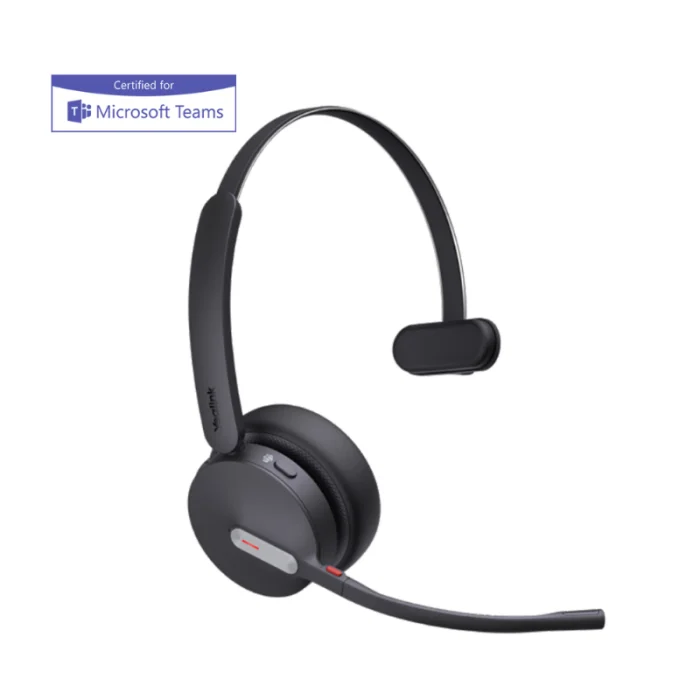
Designed for one-ear use, perfect for professionals who need to stay connected but also aware of their surroundings.
Common Issues & Fixes:
- Issue:
“Yealink headset no sound” when used with USB-C devices.
- Fix:
Confirm correct drivers are installed and that the USB-C port is functional.
- Issue:
Mic not picking up voice.
- Fix:
Reset the headset and reconfigure it as the default input device.
A premium headset with hybrid active noise cancellation (ANC) and wireless charging support, perfect for executives and frequent travelers.
Common Issues & Fixes:
- Issue:
Noise cancellation is not working.
- Fix:
Update firmware and check ANC button status.
- Issue:
Headset not charging wirelessly.
- Fix:
Ensure the headset is placed properly on the wireless pad.
A DECT wireless headset optimized for Teams, designed for all-day wear with multiple wearing styles (earhook, headband, neckband).
Common Issues & Fixes:
- Issue:
Disconnections when far from base.
- Fix:
Stay within 120m indoor DECT range.
- Issue:
Teams notifications are not triggering the headset.
- Fix:
Re-register with Teams and update Yealink USB Connect.
Troubleshooting Table (to be turned into an infographic)
| Issue Type | Symptom Example | Quick Fix |
| Audio Issue | No sound in the Yealink headset | Check volume, reconnect, and firmware update |
| Charging Issue | Headset not charging | Inspect cable/port, reset, replace battery |
| Connectivity Issue | Bluetooth won’t pair | Reset headset, clear old pairings, re-pair |
| Firmware Issue | Random disconnections | Install the latest Yealink firmware |
| Reset Needed | Frozen headset / no response | Long-press the power button to reset |
Conclusion
Yealink’s products are some of the best business headsets in the market, but occasional problems can still pop up. The best part is that most of those issues, whether it is no sound, charging problems, or the need to reset a Yealink headset, can be solved in just a few basic steps.
For those considering an upgrade, check out the latest Yealink headsets like the BH72 Lite, BH70 Dual, BH70 Mono, BH76 UC, and WH63 Teams, all available at Spoglink.
With the correct troubleshooting knowledge and regular firmware updates, your Yealink headset will continue to deliver clear, reliable communication.


 Yealink TV-Clip Mount Kit – 330100057001
  Yealink T40-T41-T42-T43 Wall Mount Bracket – 330100000023
  Yealink 12V 1A Power Supply
  Wall Mount Bracket for GRP26X
 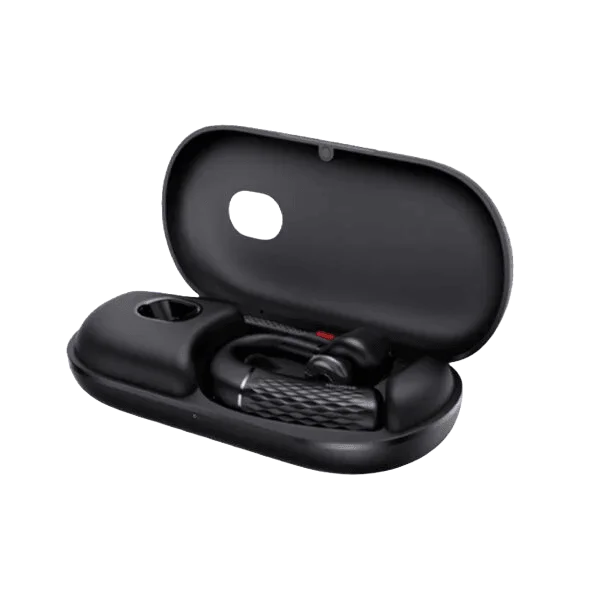 Yealink BH71 v1 – 1208651
  Yealink BH70 Dual Teams USB-C – 1208667
  Yealink A30-020 – 1206653
  Yealink Wall Mount for MP54/MP50
  Wall Mount for Grandstream GXP17xx
 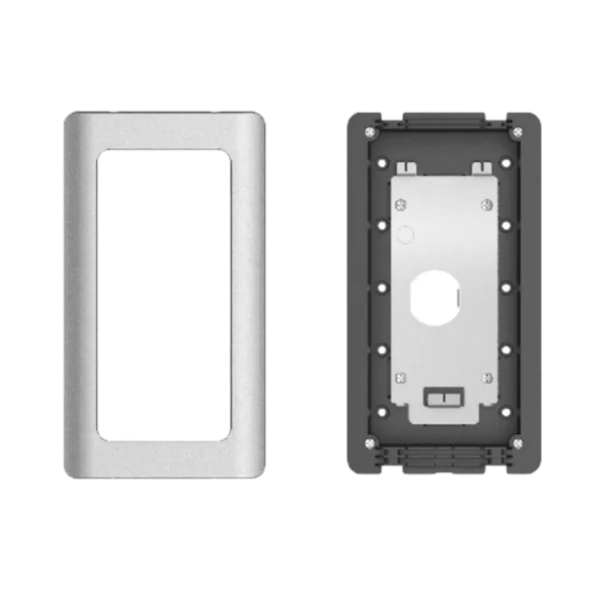 Wall Mount Kit for the GDS37XX
 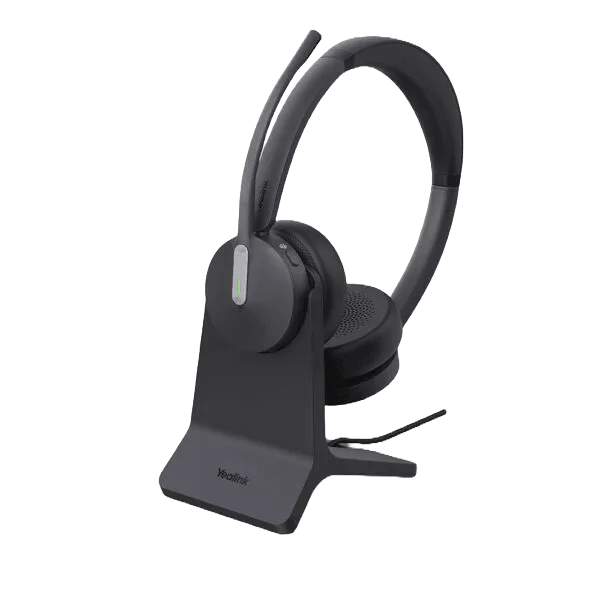 Yealink BH70 Dual with Stand Teams USB-A – 1208693
  Grandstream GWN7710R
  Yealink 5V 2A Power Supply – 330000012027
 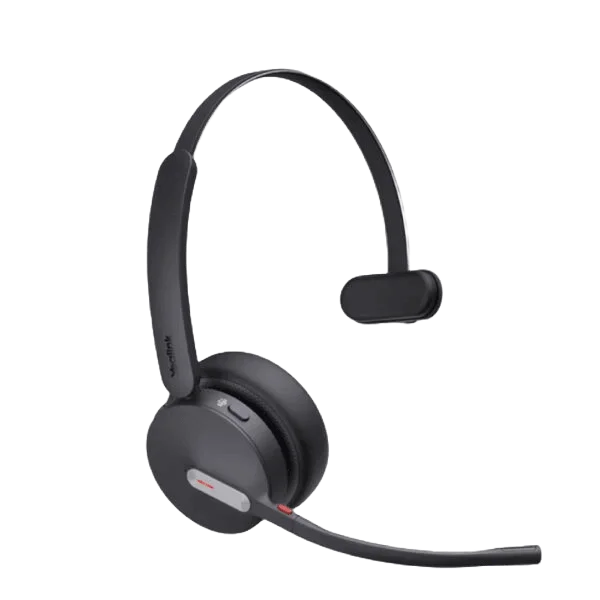 Yealink BH70 Mono Teams USB-C – 1208668
  Yealink BH70 Dual UC USB-A – 1208664
  Grandstream GWN7660E
 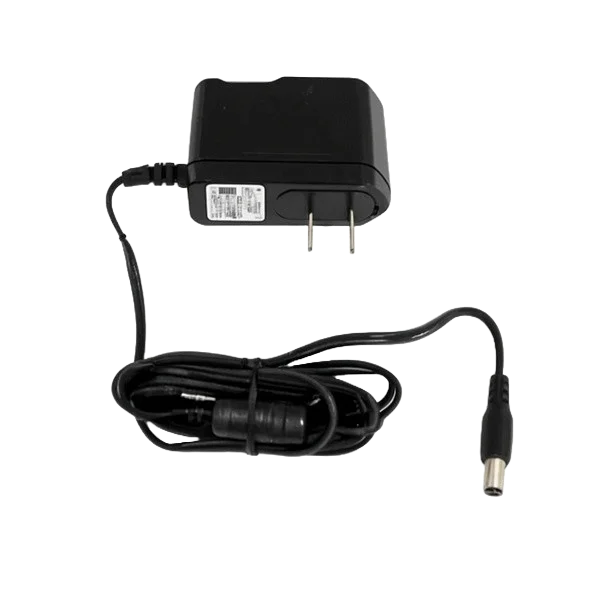 Yealink 5V 0.6A Power Supply – 330000010045
 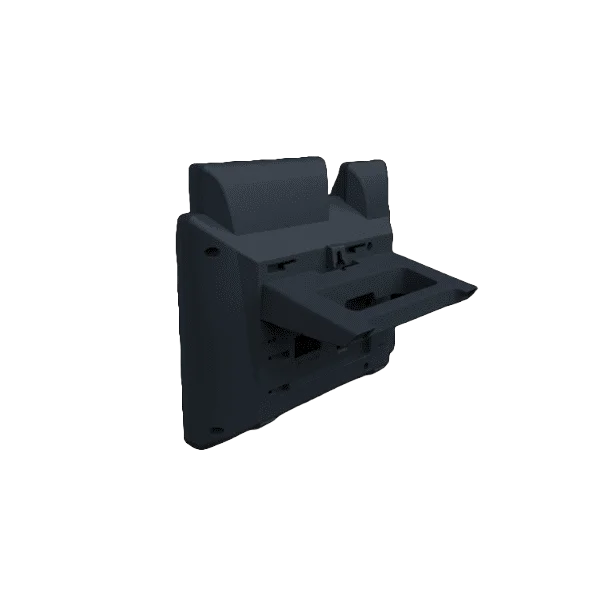 Yealink Backstand for T31P and T31G – 330100000114
 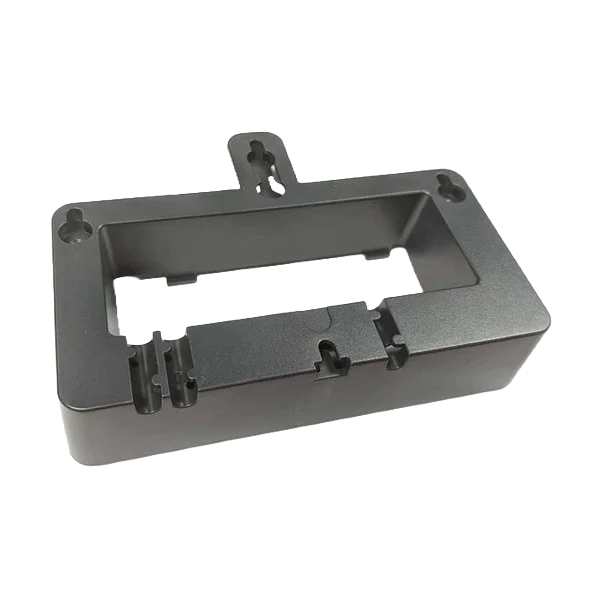 Yealink Wall Mount Bracket for T5W SIP Phones (T53/T53W/T54W)
  Ubiquiti UISP-P UISP Power
  Yealink A10-020 – 1203684
  Grandstream Wall Mount Bracket for GRP2612/GRP2613
  Yealink A20-020 – 1206651
  Yealink A30-010 – 1206652
  Grandstream GWN7052F
 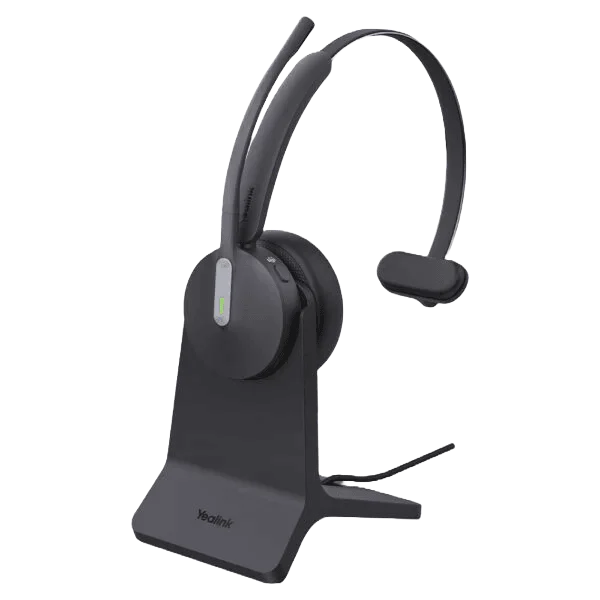 Yealink BH70 Mono with Stand Teams USB-A – 1208694
  Grandstream Handset Cord
  Grandstream GRP2613W
 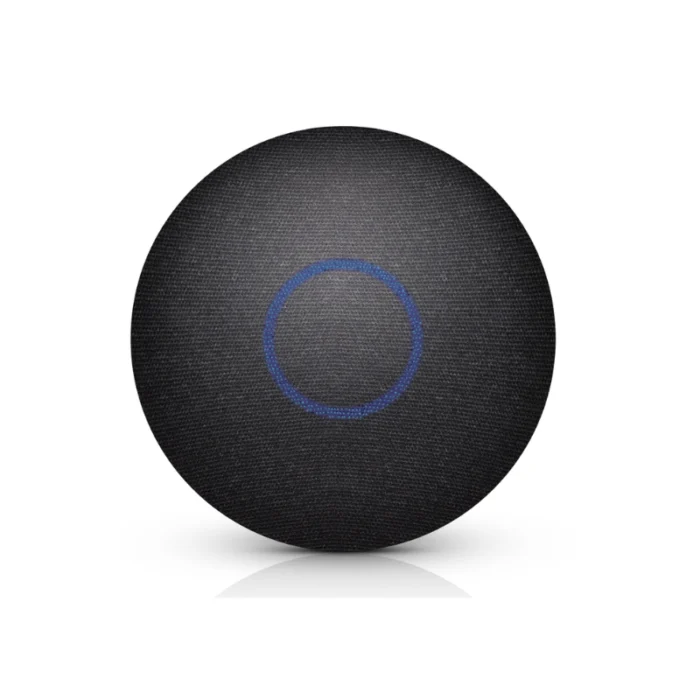 Ubiquiti nHD Cover Fabric 3-Pack
  Grandstream HT812
  Grandstream UCM6302A
 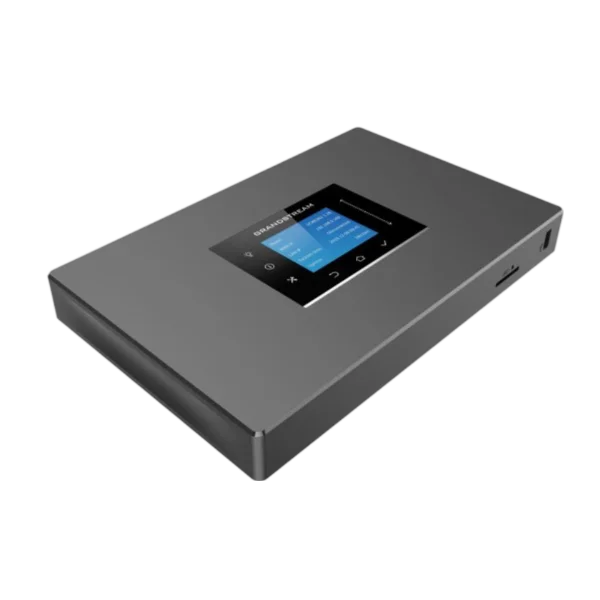 Grandstream UCM6302
  Grandstream GRP2602W
  Grandstream GDS3712
 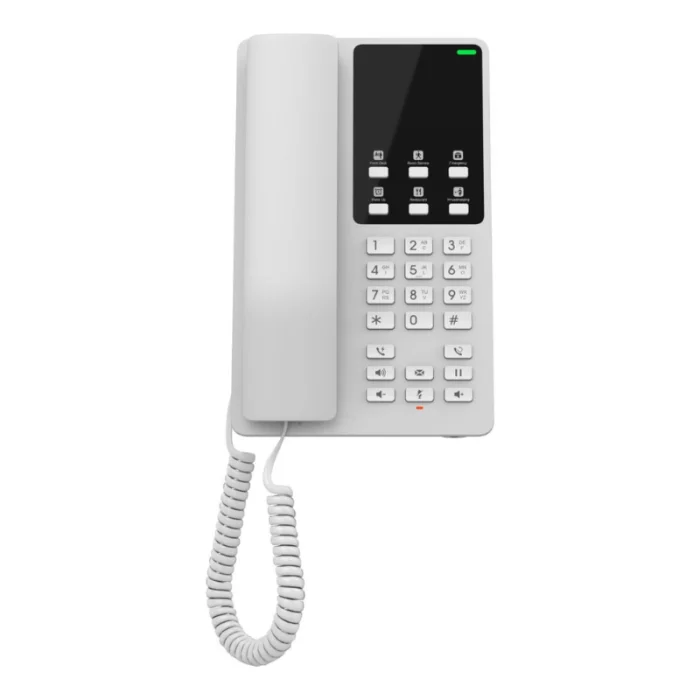 Grandstream GHP620W
 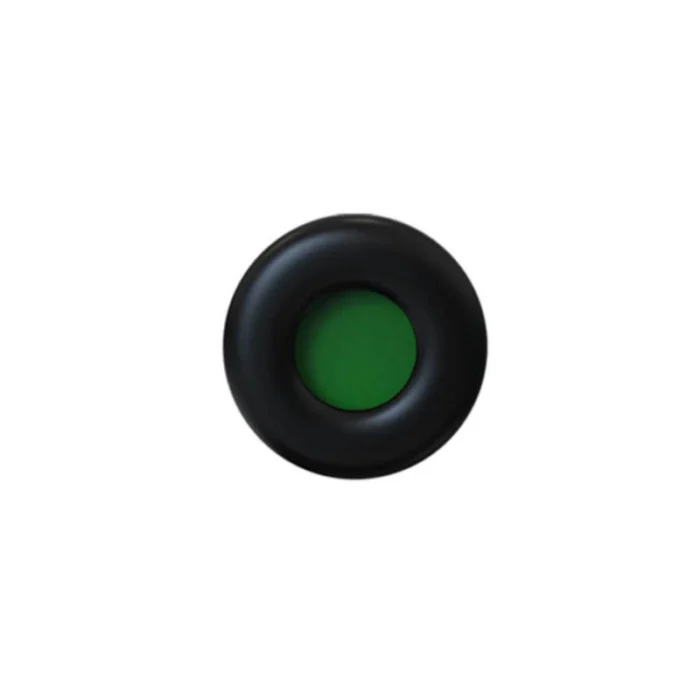 Yealink Leather Ear Cushion for WH62/WH66 (1 PC) – 3311059
  Grandstream GWN7664E
  Ubiquiti UACC-Camera-AM-B Camera Arm Mount
  Grandstream GSC3506 Ceiling Mount Bracket
 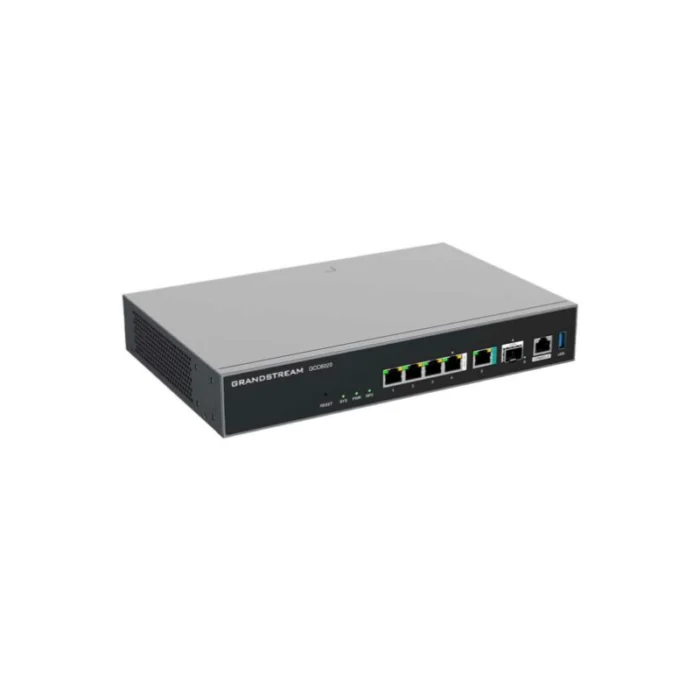 Grandstream GCC6020
 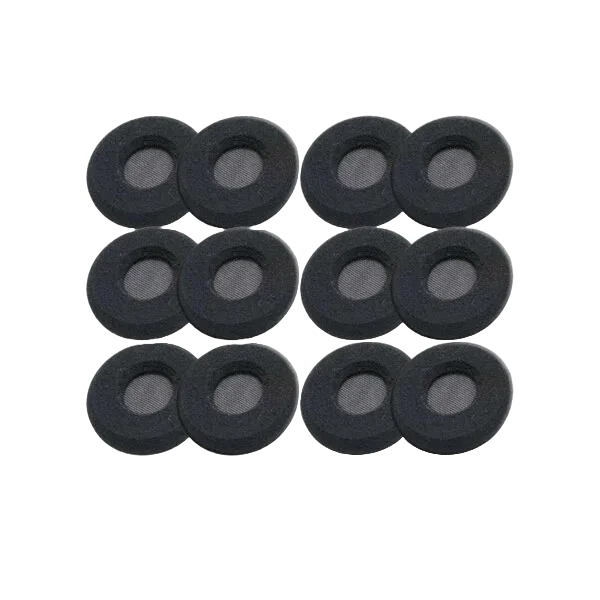 Yealink Foamy Ear Cushion (12 PCS)
 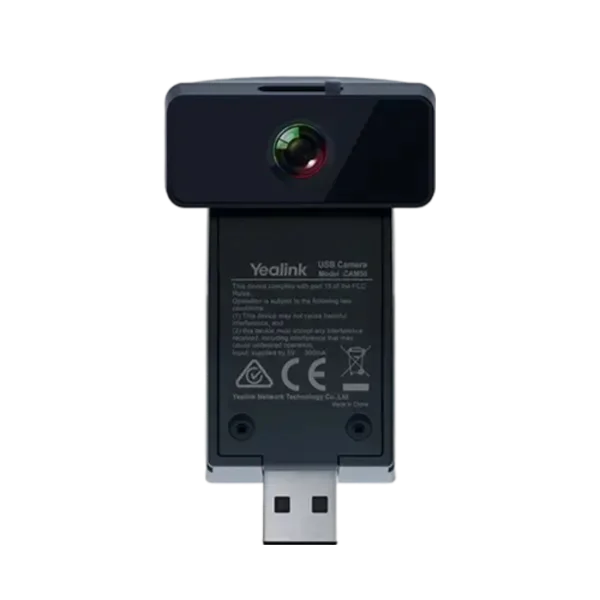 Yealink CAM50 – 1300013
  Li-Ion battery for WP822 & WP825
 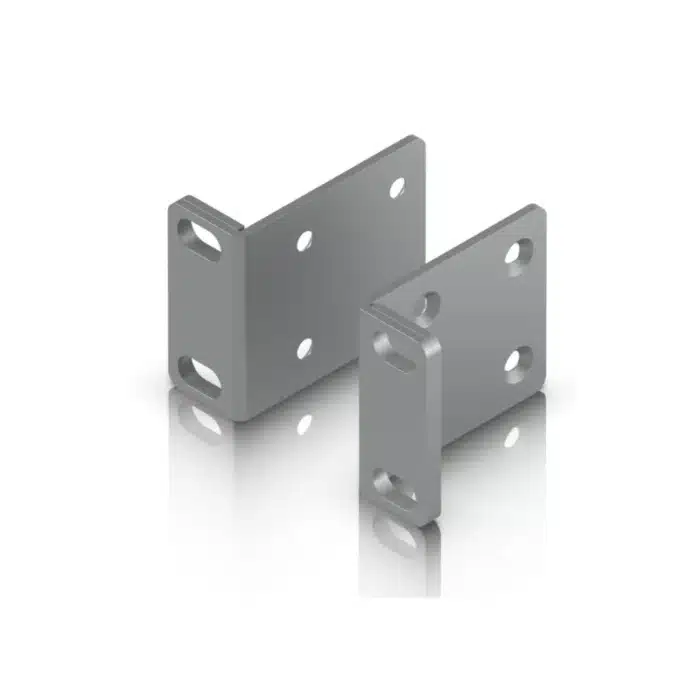 Ubiquiti UACC-Rack-Ear-1U
 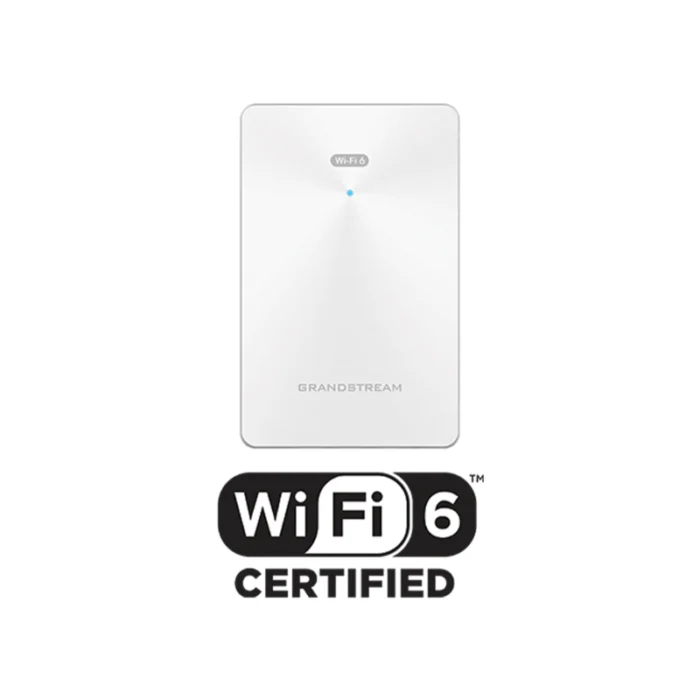 Grandstream GWN7661E
 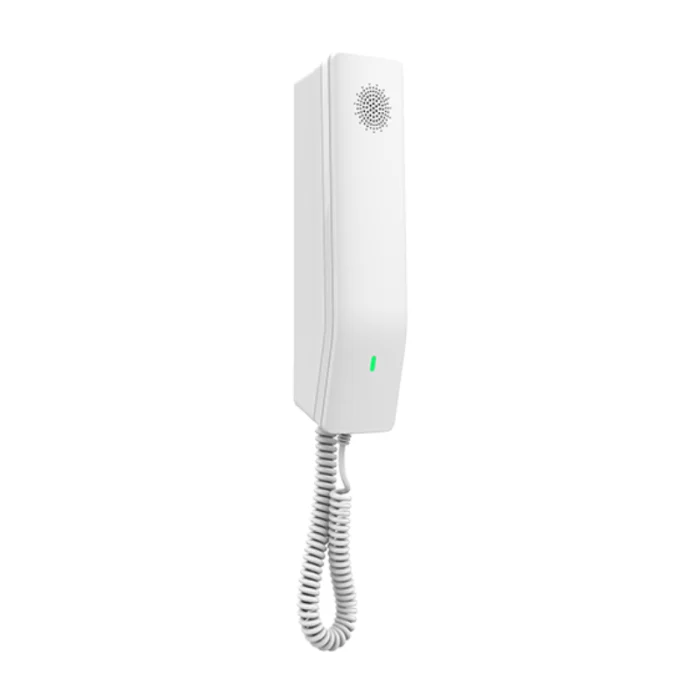 Grandstream GHP610W
 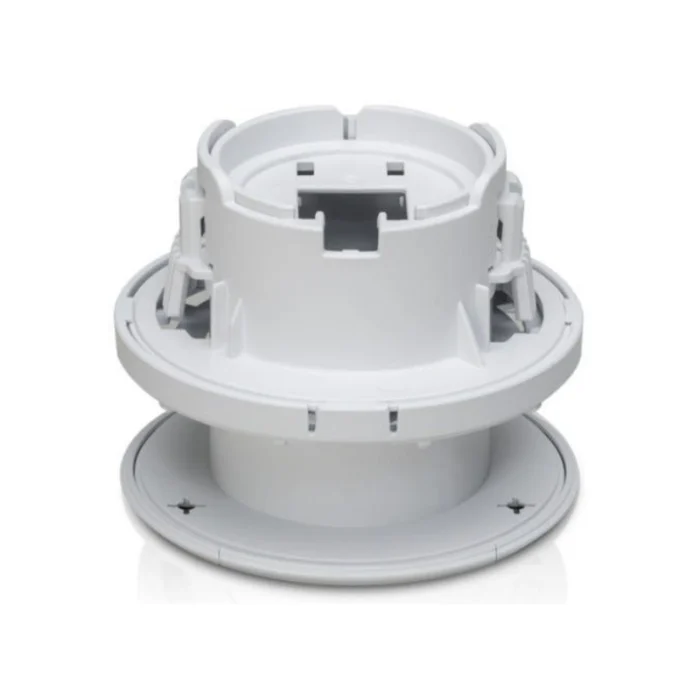 Ubiquiti G3 Flex Camera Mount 3Pk
  Grandstream UCM6308A
 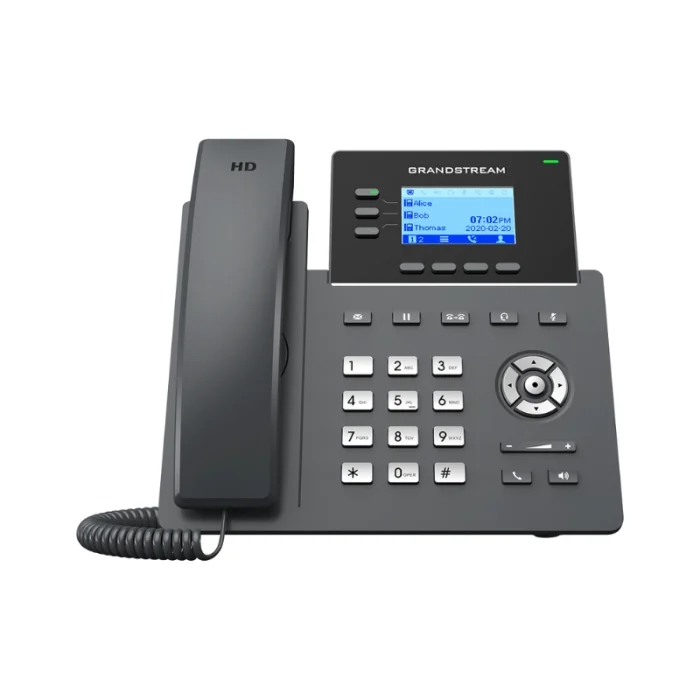 Grandstream GRP2603P
 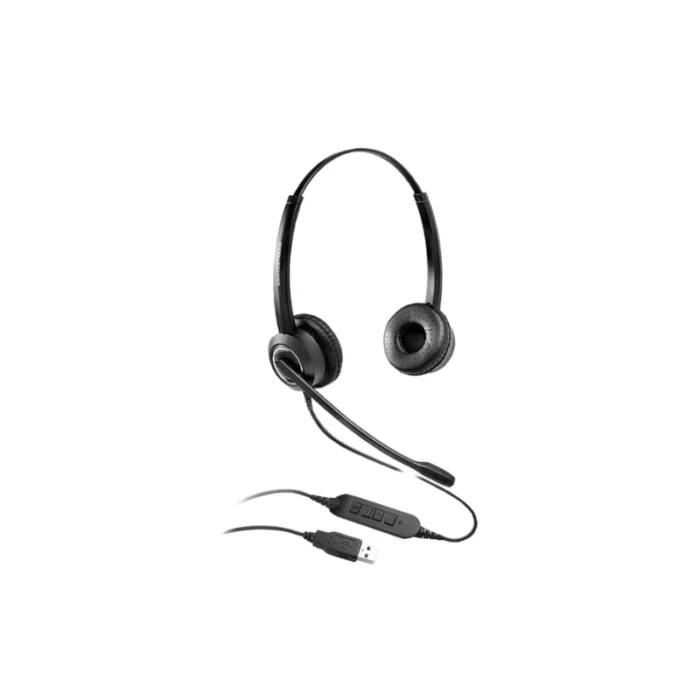 Grandstream GUV3000
 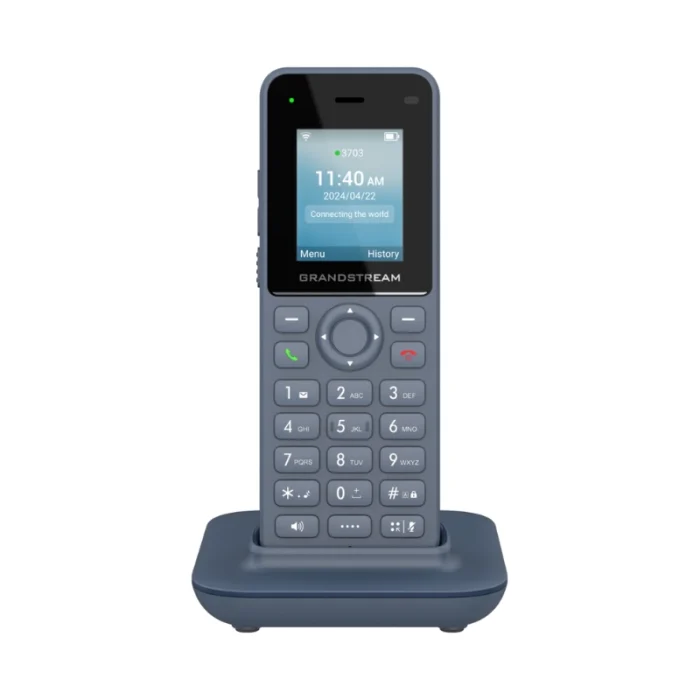 Grandstream WP816
 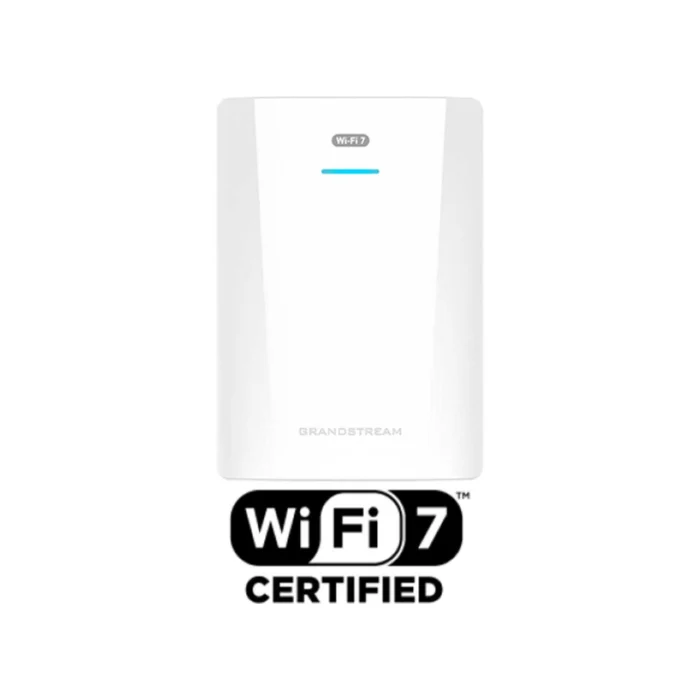 Grandstream GWN7670WM
  OWL Labs USB C to C SuperSpeed Cable (16ft)
 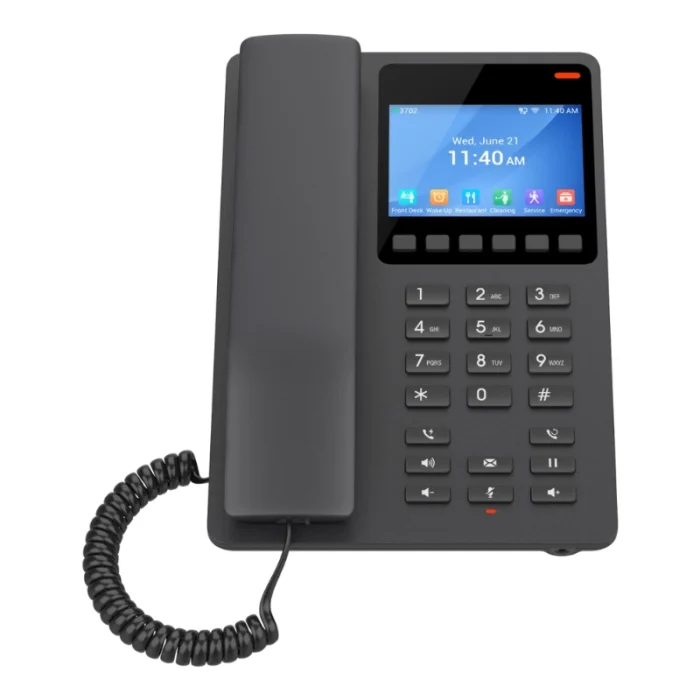 Grandstream GHP631
 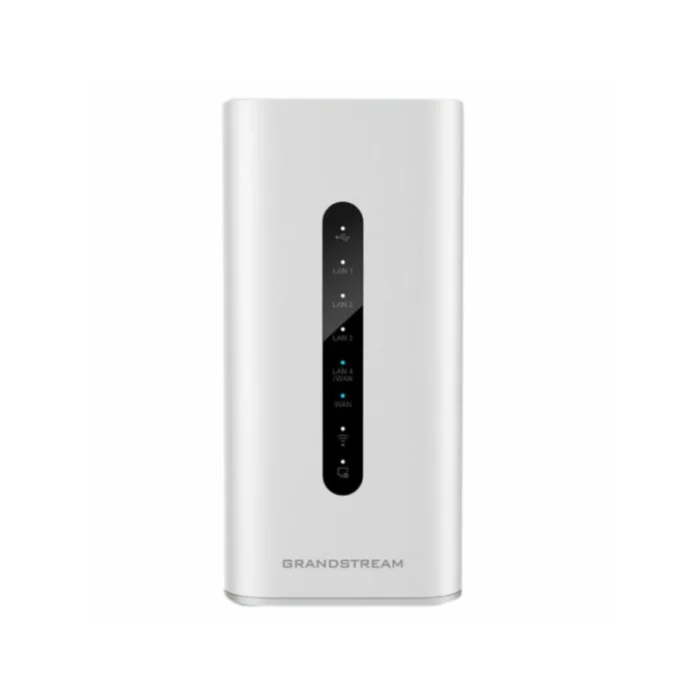 Grandstream GWN7062
 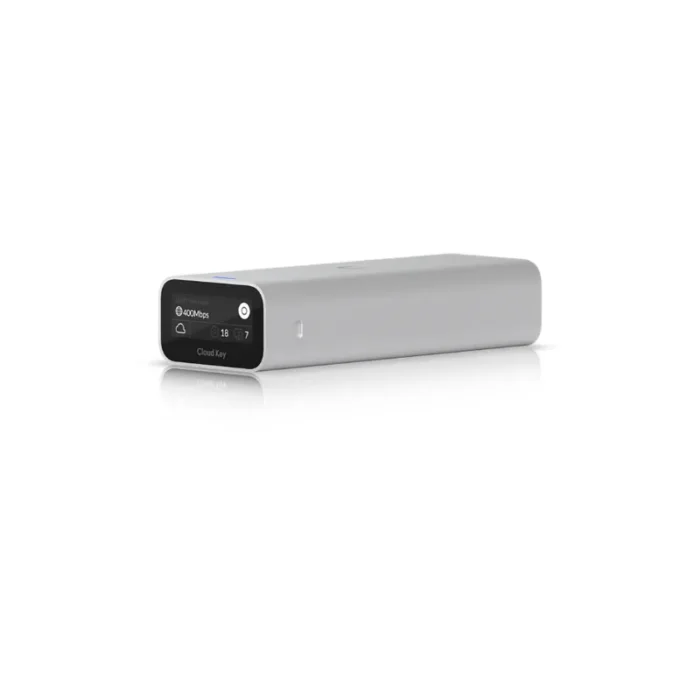 Ubiquiti UCK-G2 UniFi CloudKey
  Grandstream GWN7630
 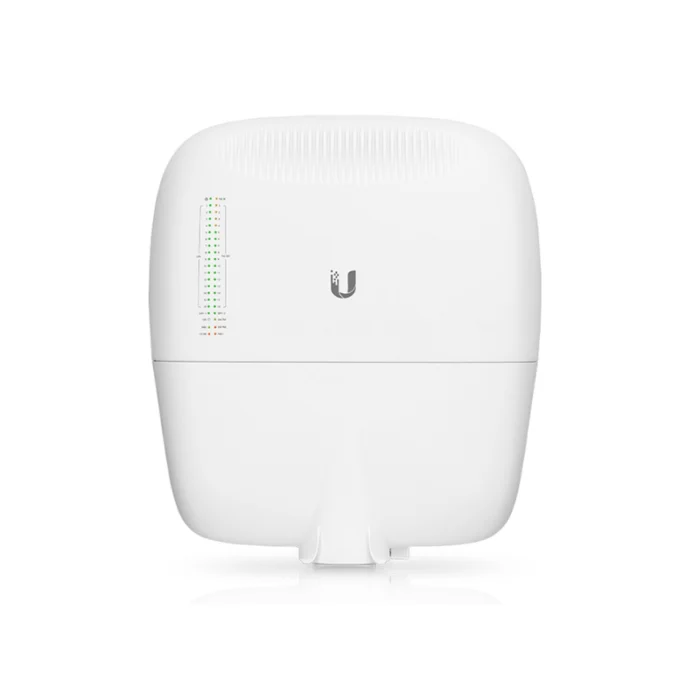 Ubiquiti EP-S16 EdgePoint Switch
 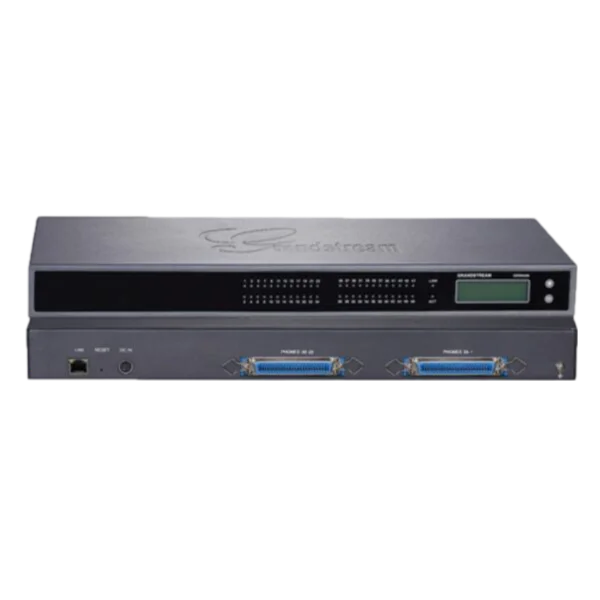 Grandstream GXW4248
  Grandstream GRP2612P
  Grandstream WP825 Cordless Wi-Fi Phone
  Grandstream GWN7660ELR
 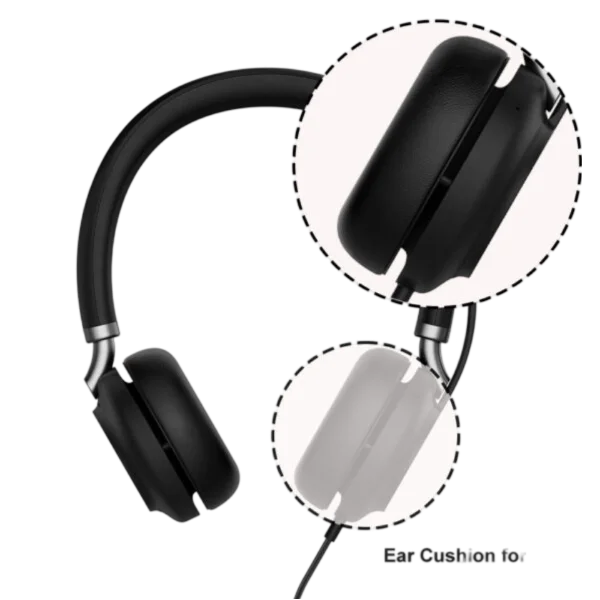 Yealink Ear Cushion for UH38 (5 Pairs) – 331100800001
  Ubiquiti Wave MLO5
 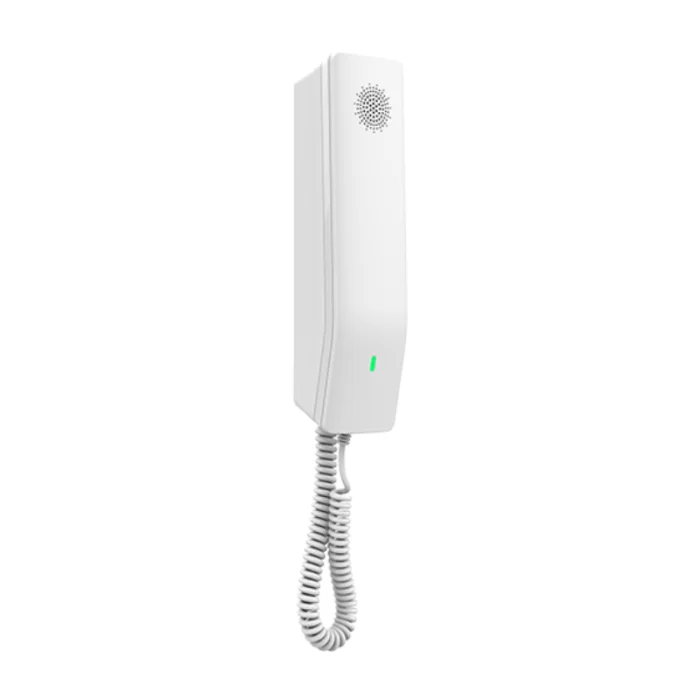 Grandstream GHP610
 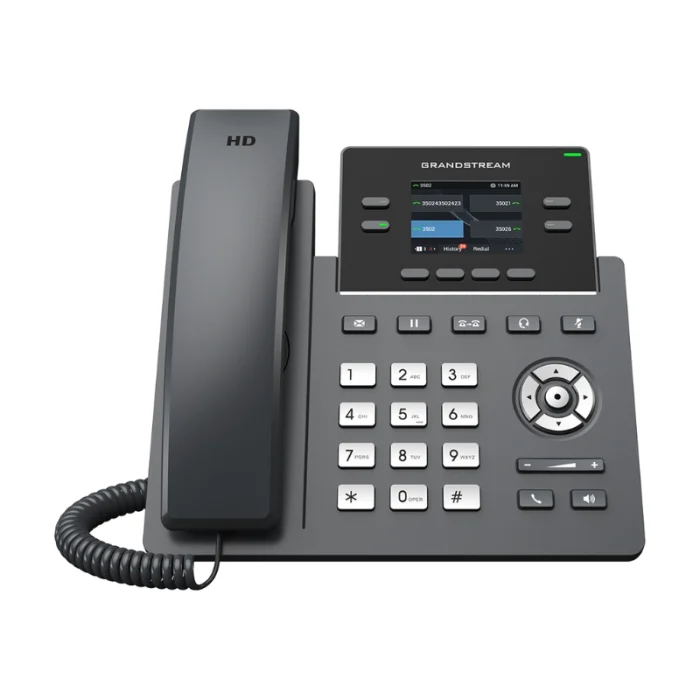 Grandstream GRP2612W
  Grandstream GWN7665
 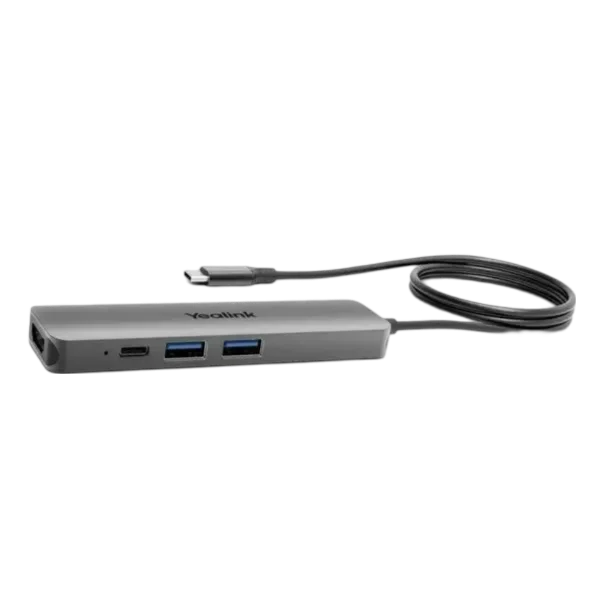 Yealink BYOD-BOX – 1300004
 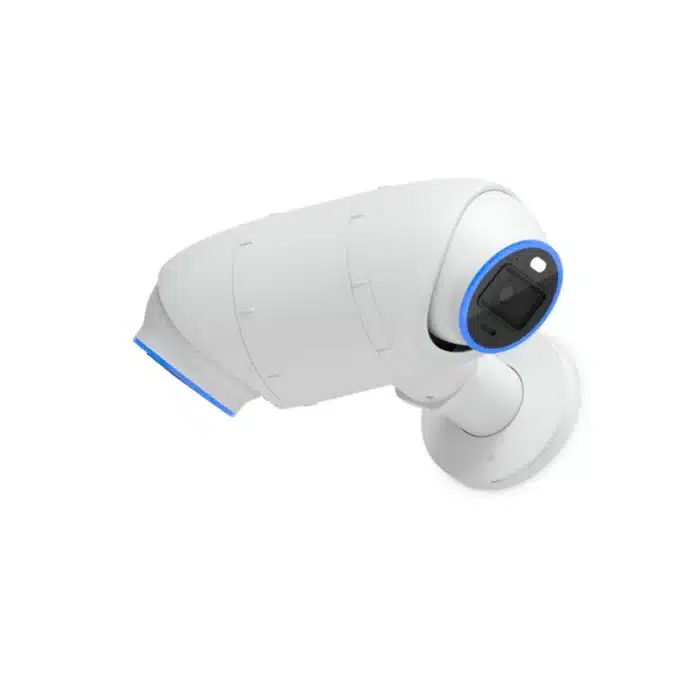 Ubiquiti UACC-Camera-DM-W Dual Mount White
 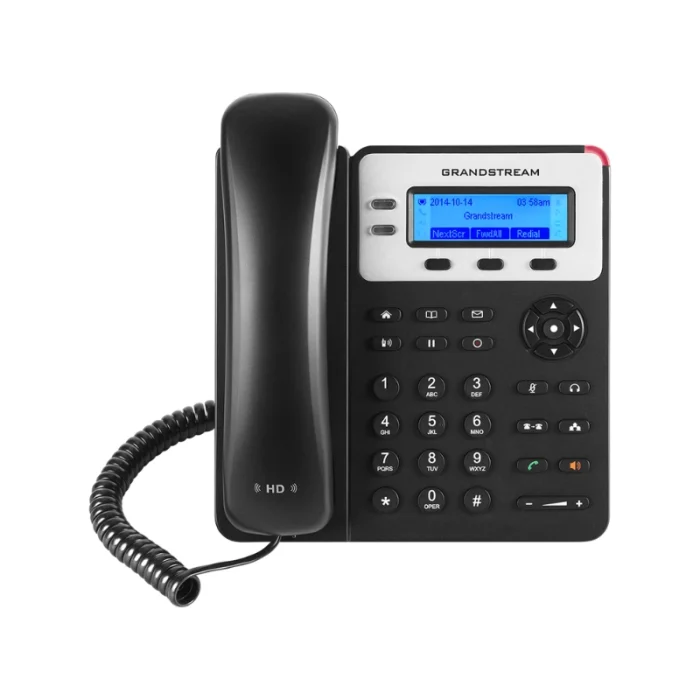 Grandstream GXP1620
 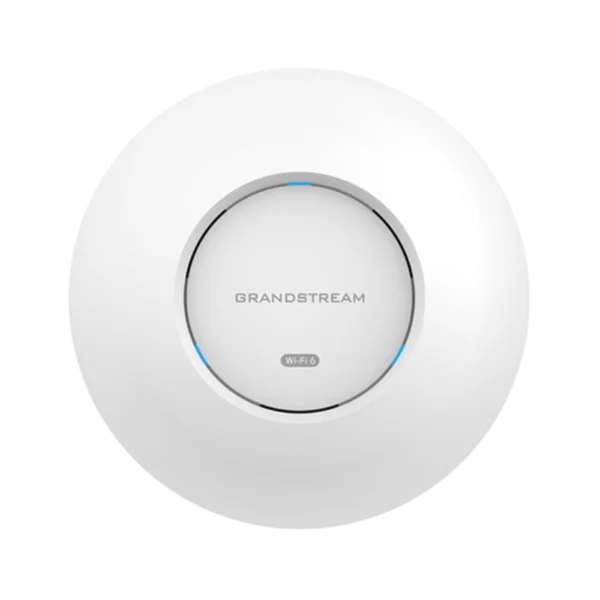 Grandstream GWN7664
  Spare Handset for GRP models
 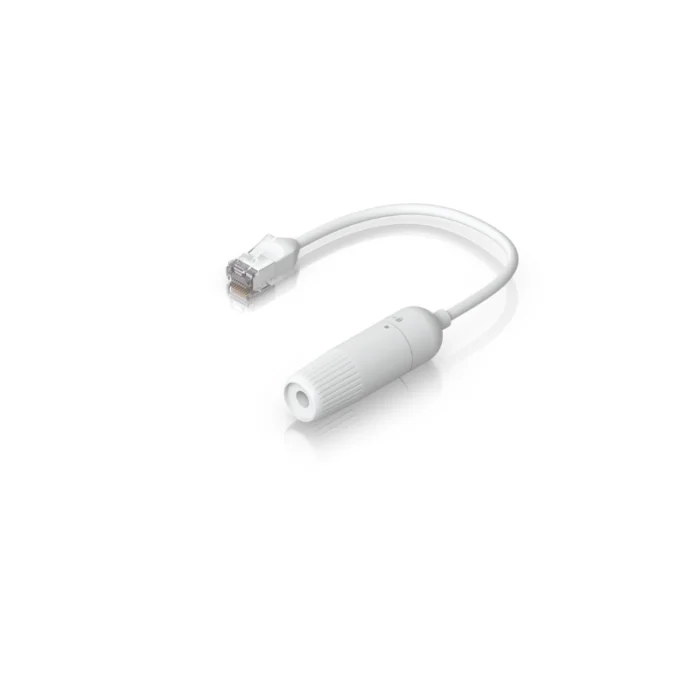 Ubiquiti UACC-Cable-Extender-C6A 2 Pack
 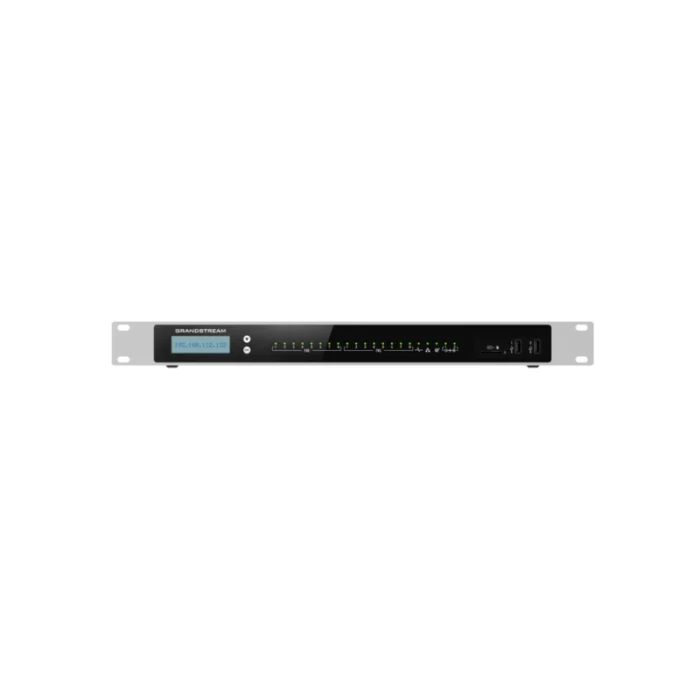 Grandstream UCM6308
 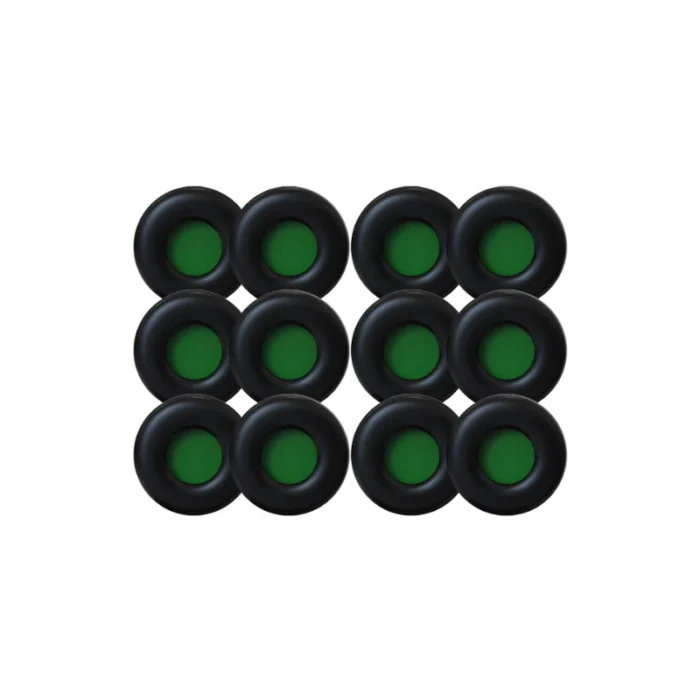 Yealink Leather Ear Cushion for WH62/WH66 (12 PCS) – 3311060
 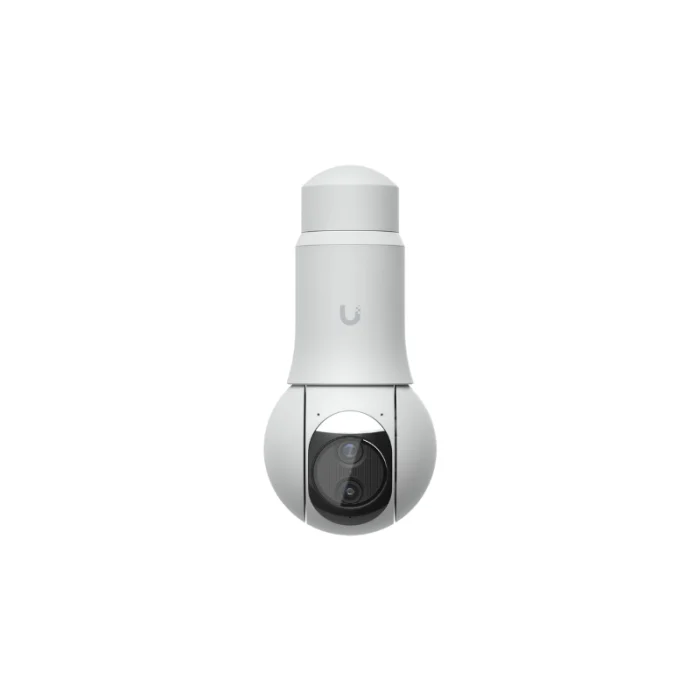 UVC-G6-PTZ-W UniFi G6 4K PTZ Camera
 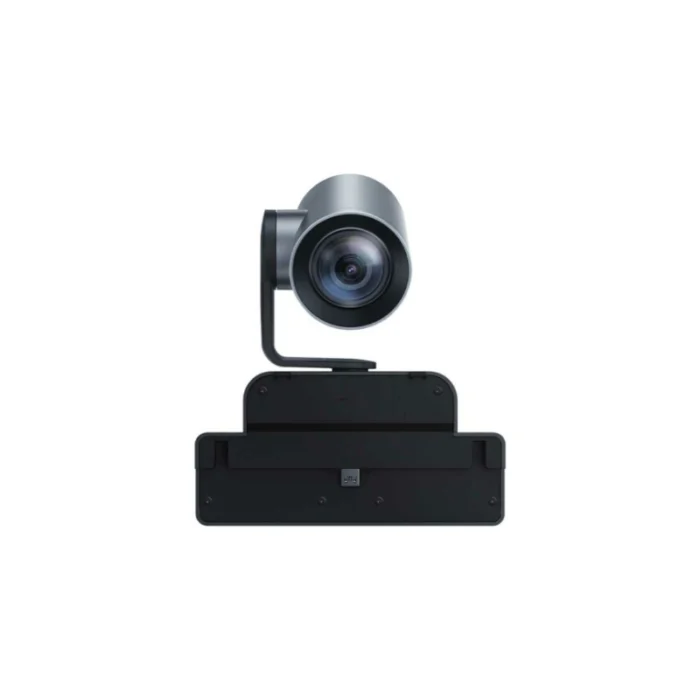 Yealink MB 12X PRO – 1303128
 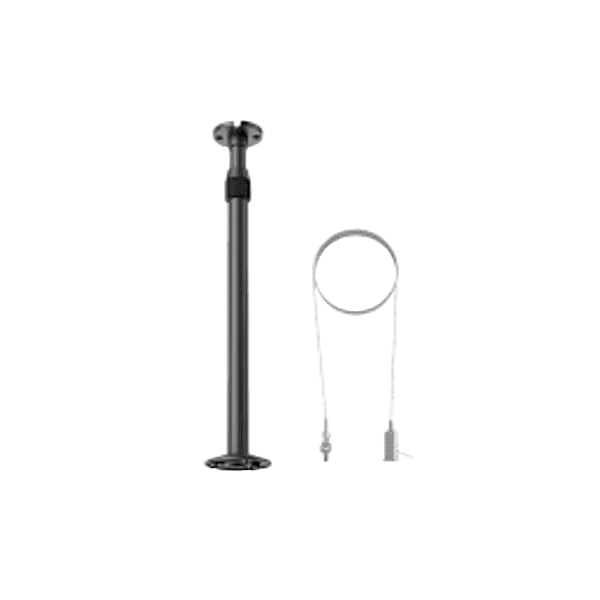 Yealink CM-MountKIT – 3311091
  TP-Link TL-SG105PP-M2
 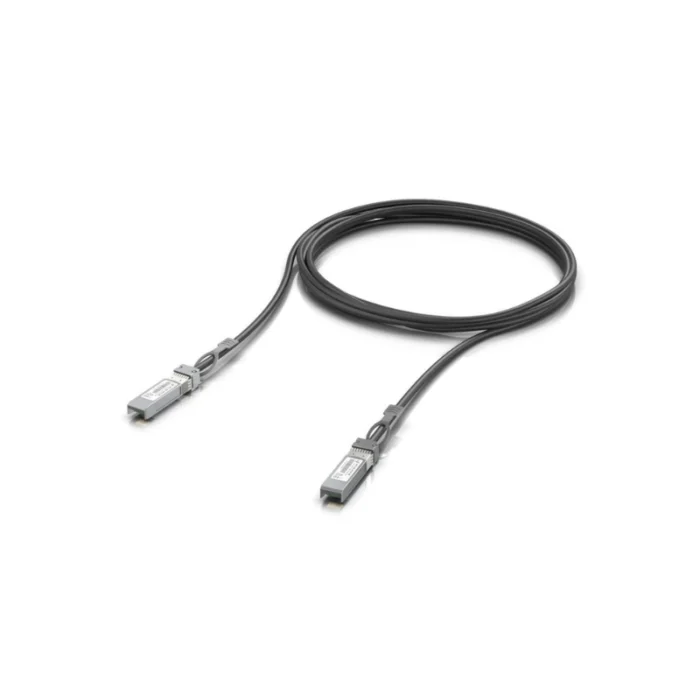 Ubiquiti 3m SFP Plus DAC Cable
 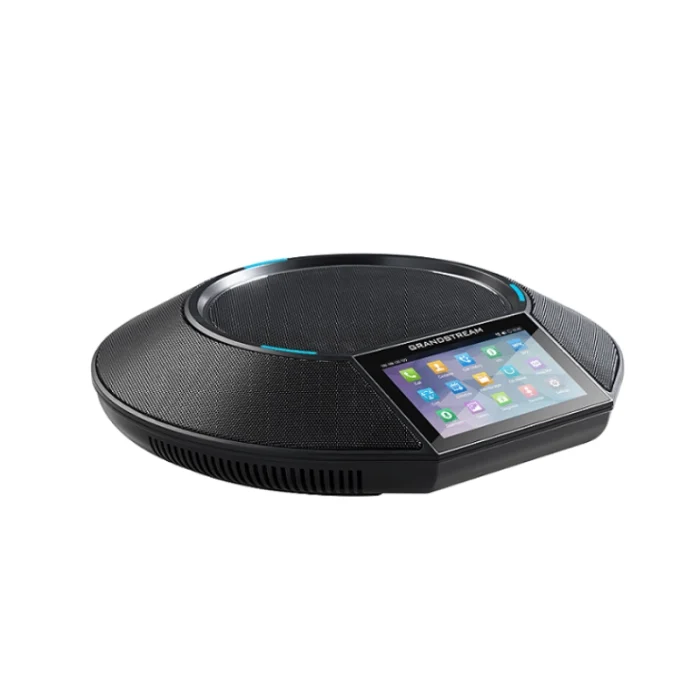 Grandstream GAC2500
 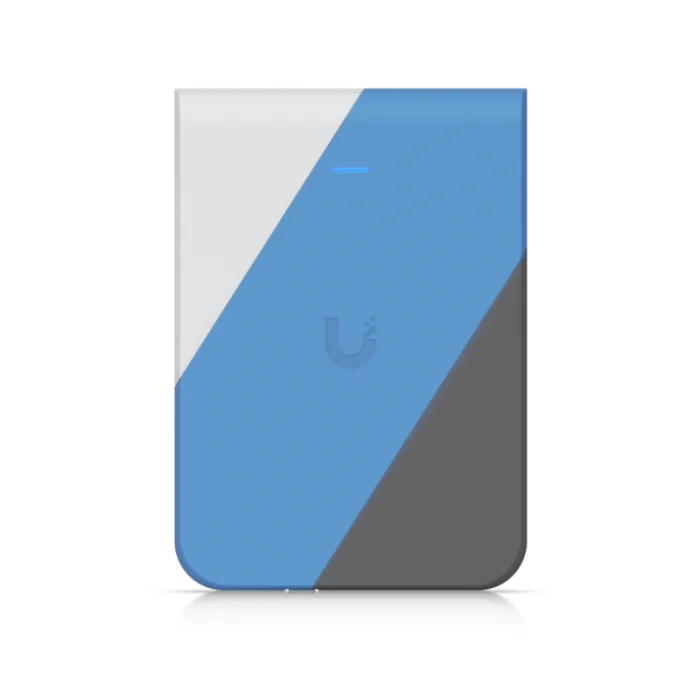 Ubiquiti U7 Pro Wall Paintable Cover
  Grandstream GHP630W
 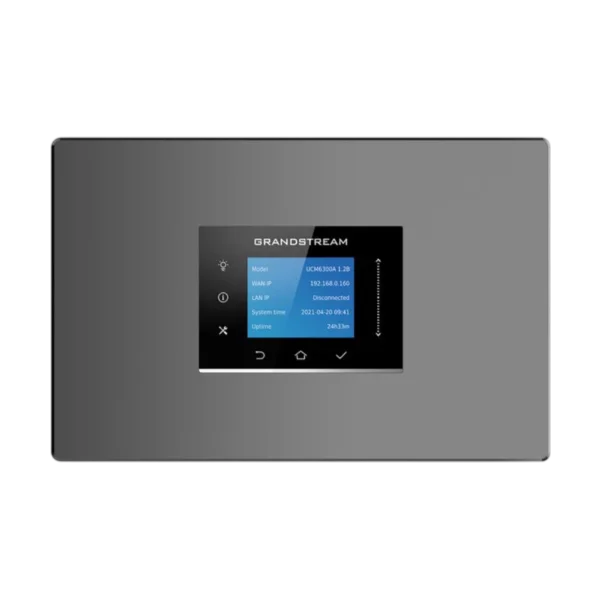 Grandstream UCM6300A
  Grandstream GXW4232 v2
 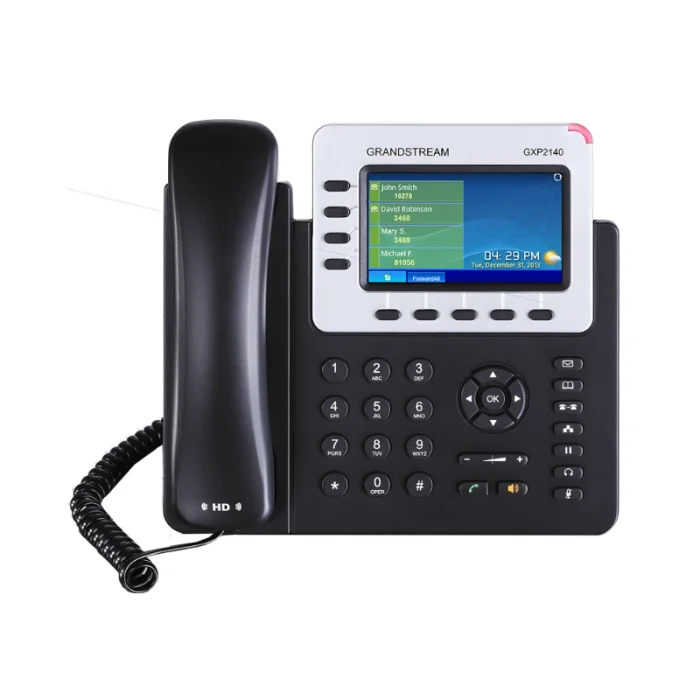 Grandstream GXP2140
 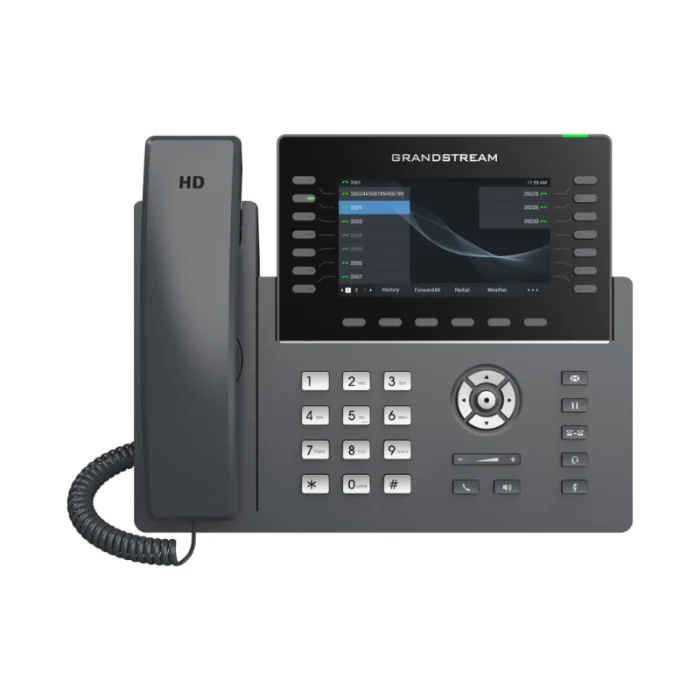 Grandstream GRP2650
  Owl Labs Meeting Owl Tripod
 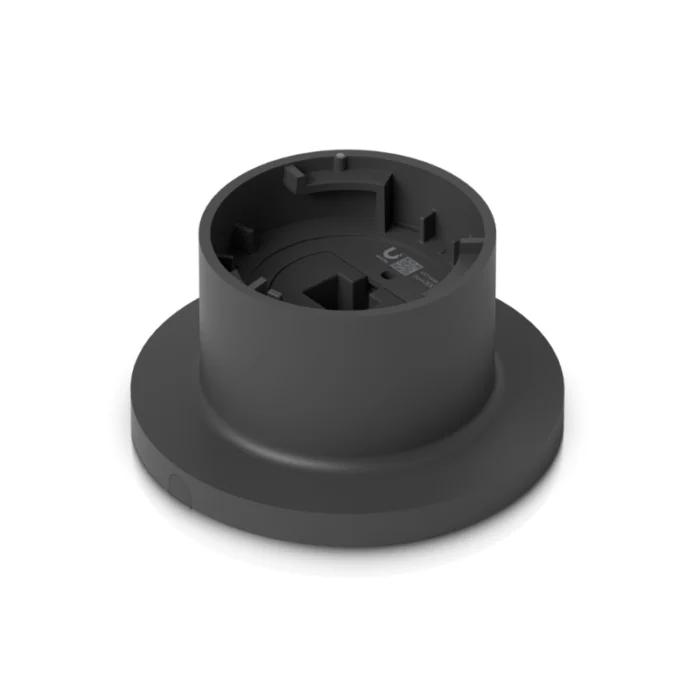 Ubiquiti G5 PTZ Surface Mount Black
 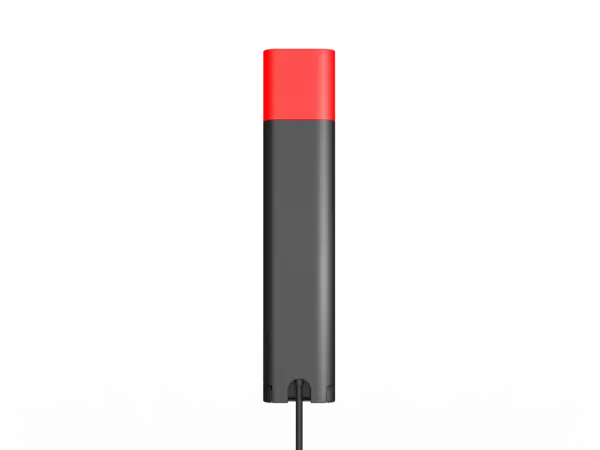 Yealink BLT60 – 1300077
 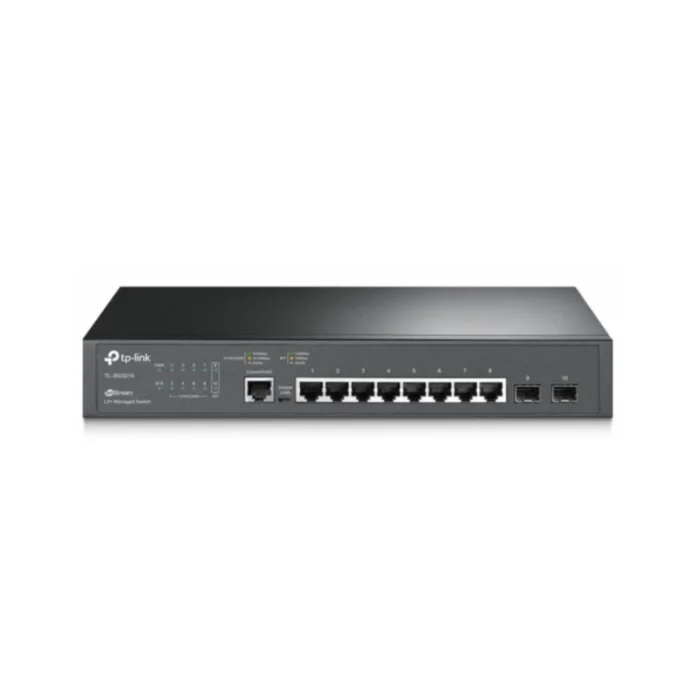 TP-Link SG3210
 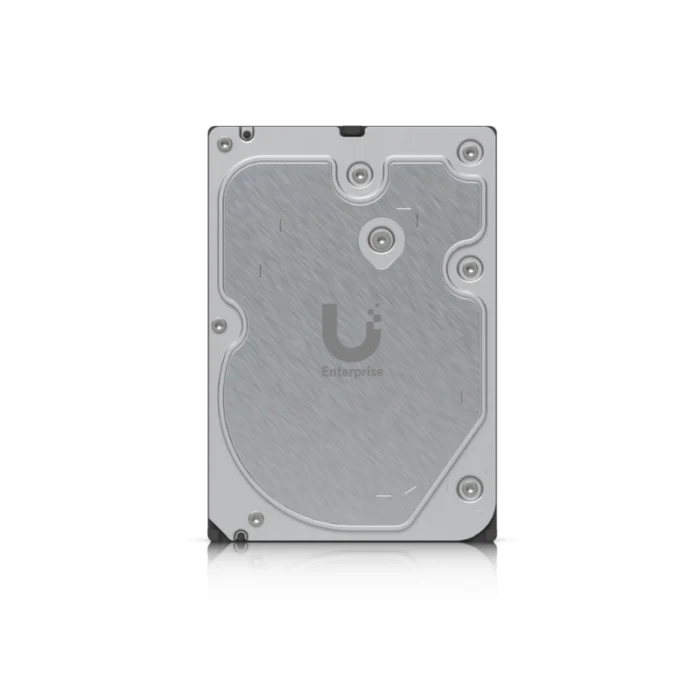 Ubiquiti UACC-HDD-E-8TB Enterprise HDD
 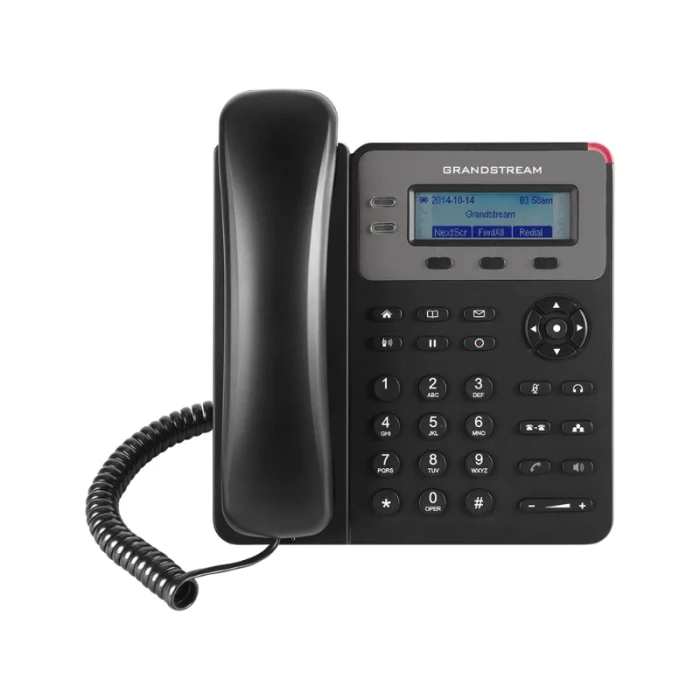 Grandstream GXP1610
 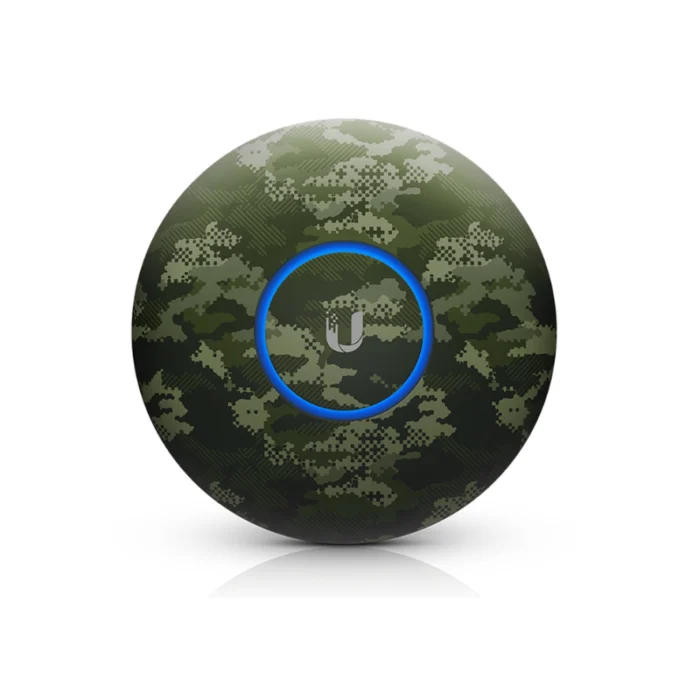 Ubiquiti nHD Camo Cover 3-Pack
 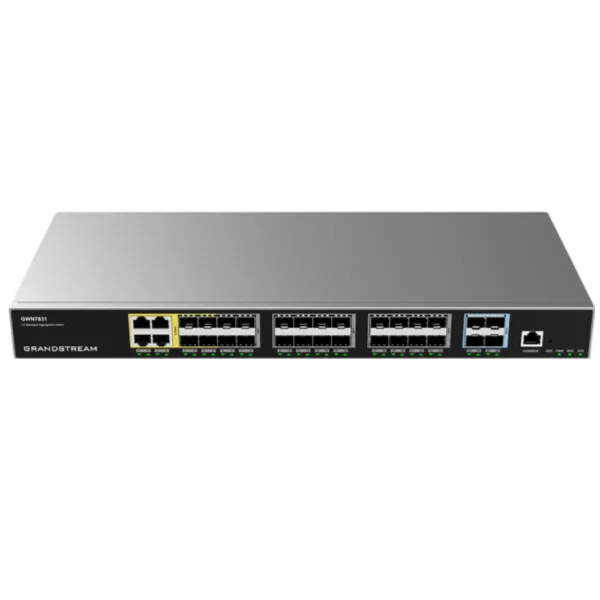 Grandstream GWN7831
  Grandstream GWN7700MP
 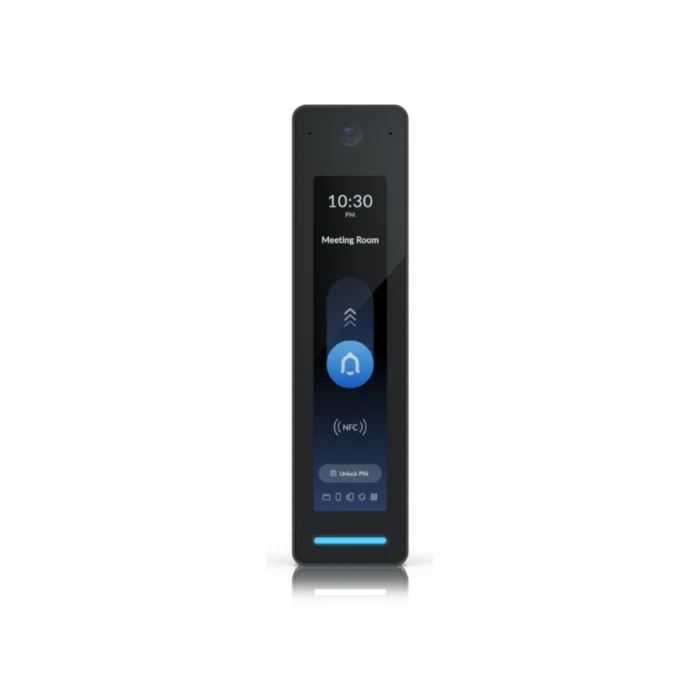 Ubiquiti UA-G2-Pro Access Reader Black
 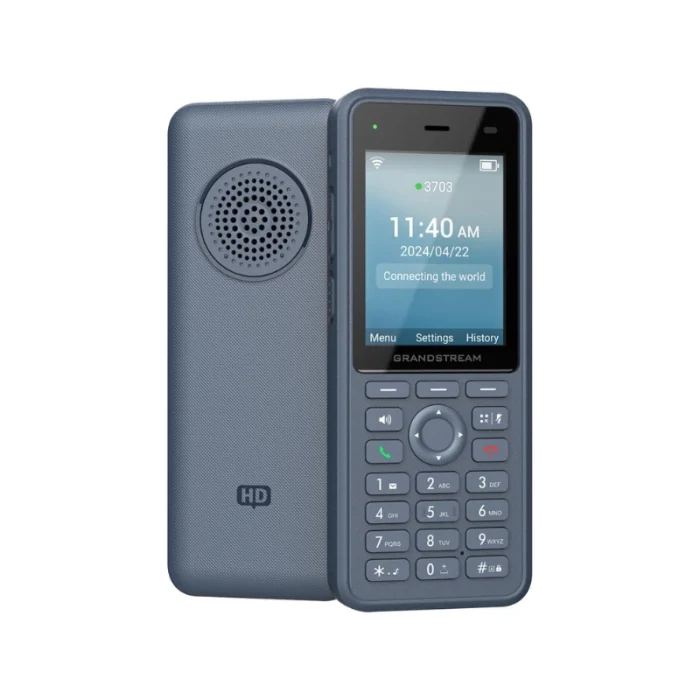 Grandstream WP836
  Grandstream GWN7700
 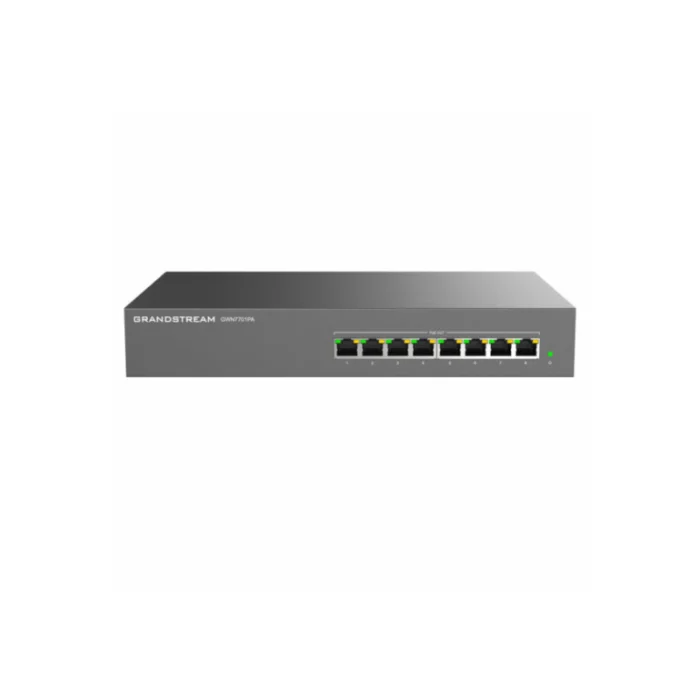 Grandstream GWN7701PA
  Grandstream USB RFID Card Reader
  TP-Link TL-SG105E
  Grandstream UCM6304
  Grandstream GCC6010W
  Grandstream GWN7604
  Ubiquiti UACC-ETH-SP-DIN Surge Protector
  Yealink EarHook for WH6x
  Grandstream GWN7801
 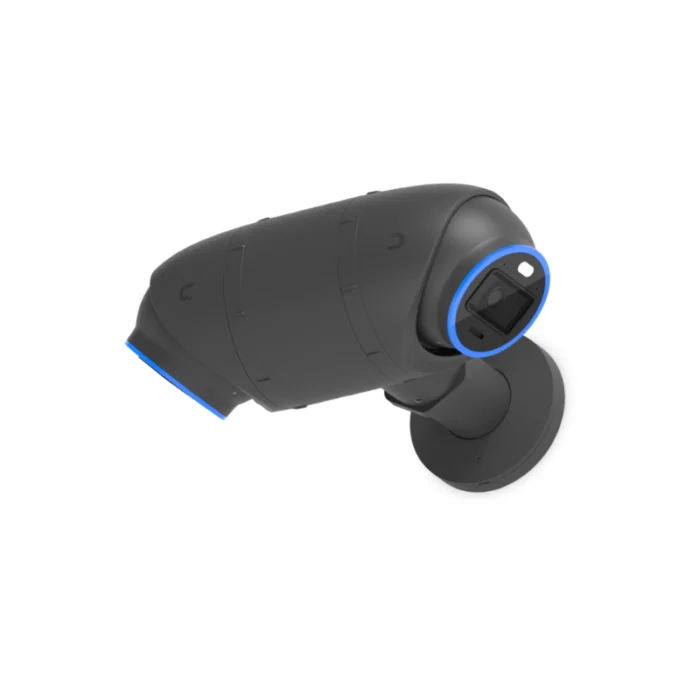 Ubiquiti UACC-Camera-DM-B Dual Mount Black
  Ubiquiti PoE Audio Port White
 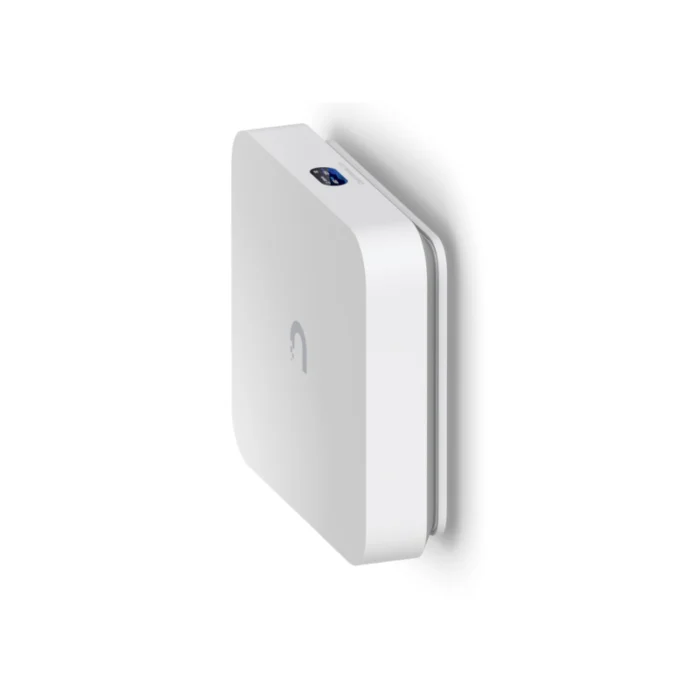 Ubiquiti UACC-FM-17cm Floating Mount
 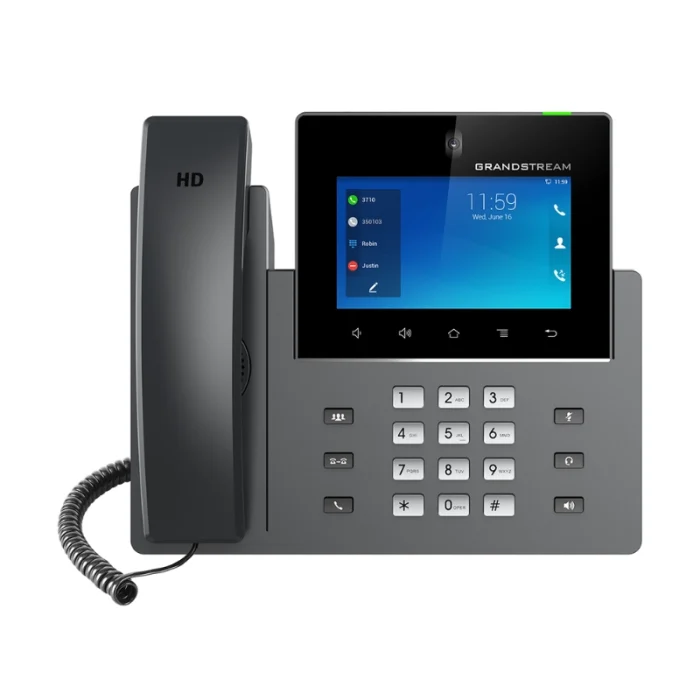 Grandstream GXV3350
 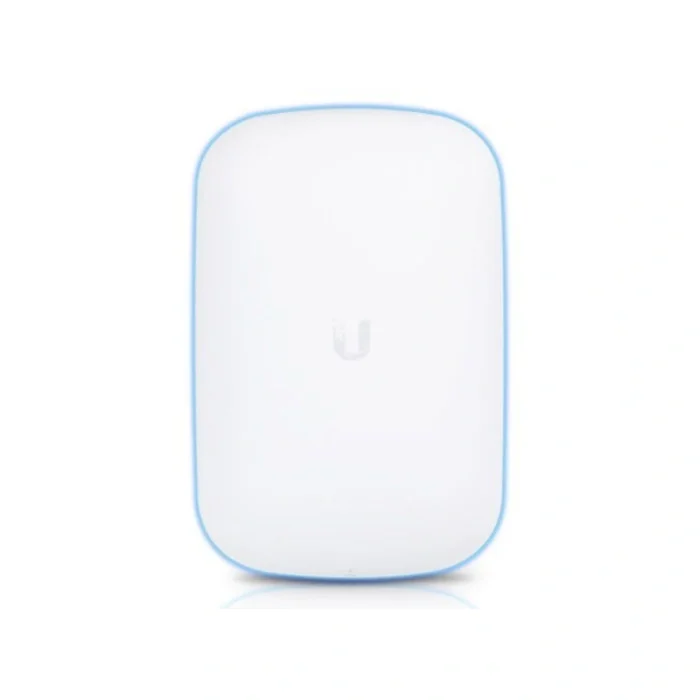 Ubiquiti UniFi BeaconHD Access Point
  Ubiquiti UACC-Intercom-WM
 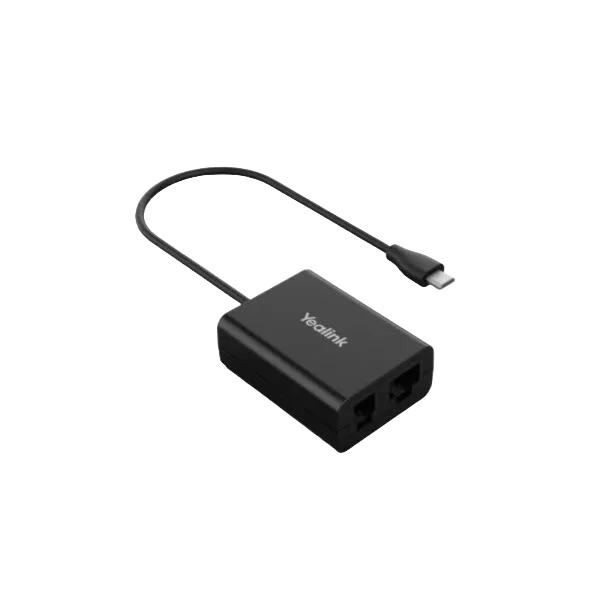 Yealink EHS60 – 1308019
  Ubiquiti Marble Design for IW-HD 3pk
 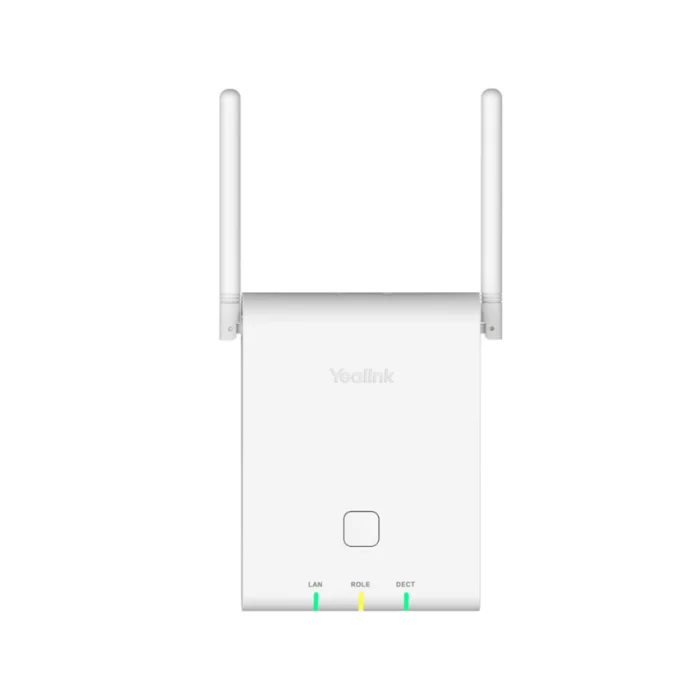 Yealink W90DM – 1302016
 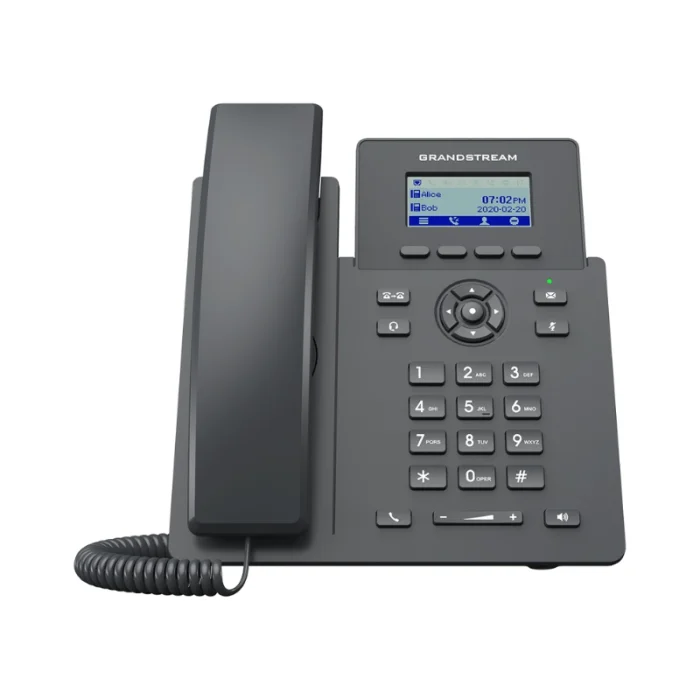 Grandstream GRP2601P
 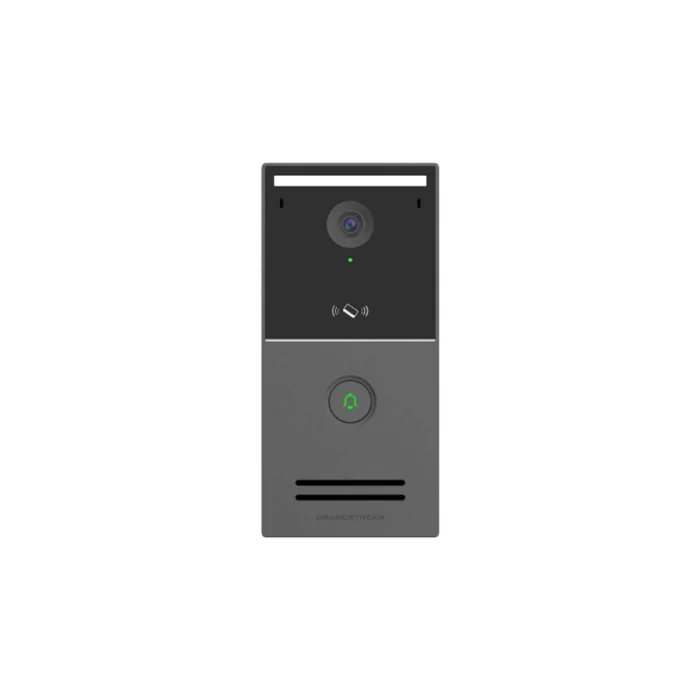 Grandstream GDS3727
  Grandstream GXP Spare Handset
  TP-Link TL-SF1006P
  TP-Link TL-SG3210XHP-M2
  TP-Link SL2428P
  TP-Link TL-SG3428XMP
  TP-Link TL-SG1005P
  TP-Link TL-SG1016PE
  Yealink BH70 Mono Teams USB-A – 1208665
  Yealink BH71 Workstation Pro v1 – 1208654