

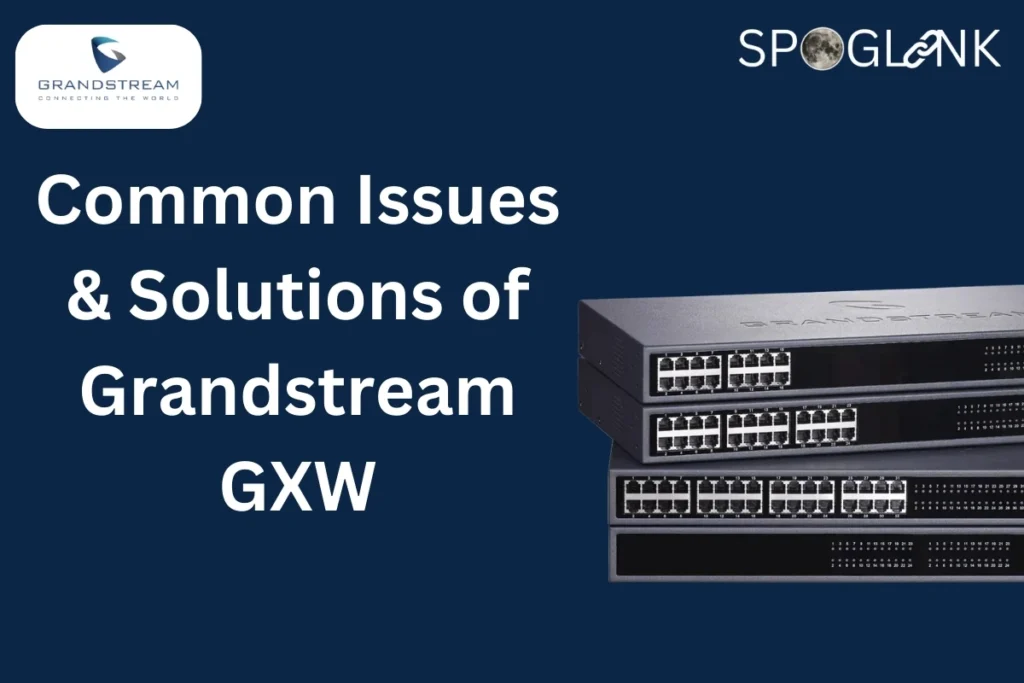
if you have or someone around you has ever used a Grandstream GXW VoIP Gateway, like the dependable GXW4224, you might already know how flawlessly it can connect traditional analog phones with modern VoIP systems. It’s trustworthy, well-built, and built for businesses that value clear and uninterrupted communication.
But when things and situations don’t go as planned – suddenly calls drop, connections lag, or setup gets confusing, it feels so frustrating, especially when your business entirely depends on staying connected. Don’t worry, you’re not alone. We are here to support you every step forward.
Whether you are a first-time user or a small business owner managing multiple devices, this guide will help you understand the most common issues and solutions of Grandstream GXW in a simple and easy way, with practical and easy-to-follow steps. You will learn exactly how to fix problems on your own and get your system running like new again.
And when you are ready to upgrade or explore trusted Grandstream devices that make communication effortless, visit Spoglink – your reliable online tech partner trusted by companies and businesses all over the USA, for the best deals and genuine products, because your business deserves a gear that performs as perfectly as you.
1. Grandstream GXW Not Working After Setup
What’s Going On?
In some cases, after everything is set and done, after initial setup, you might find your Grandstream GXW not working at all, like no dial tone, no lights, and no signal.
Why It Happens:
- Improper power connection.
- Firmware glitches.
- Incorrect VoIP settings.
- Internet issues.
How To Fix It Fast:
- Double-check that the power cable is securely connected.
- Restart the device (yep, that good ol’ “turn it off and on” trick still works).
- Make sure your internet connection is stable.
- Log in to the web UI (user interface) and verify SIP settings.
- If all else fails, update the firmware from Grandstream’s official website.
Tips: Always use the power adapter that came with the device. Third-party power sources can cause boot failures.
2. Registration Fails – No SIP Connection
What’s Actually Happening?
You’ve connected your entire setup, but your analog phones won’t register on your VoIP system. You might see messages like “SIP registration failed” or “account not registered.”
This Is One of the Most Grandstream GXW Configuration Issues
Reason It Happens:
- Incorrect SIP server address.
- Wrong SIP port.
- Firewall or NAT is blocking the connection.
Quick Fix That Works:
- Log in to the web interface.
- Check the SIP server IP or hostname under “Accounts > General Settings.”
- Confirm the port number (usually 5060 for SIP).
- Make sure any firewalls or routers aren’t blocking ports needed for SIP traffic.
- Enable STUN (Session Traversal Utilities for NAT) if you’re behind a NAT.
Check out our Grandstream brand page for more VoIP accessories that simplify and boost up your setup’s performance and compatibility.
3. Choppy Audio or One-Way Audio
Ugh, Probably The Most Annoying One!
What’s Going On?
Call connections are perfect, but either you or the person on the other side can’t hear you clearly or at all. This is a very common Grandstream GXW troubleshooting scenario.
Why It Happens:
- NAT/firewall issues.
- Missing or misconfigured RTP ports.
- Low bandwidth.
Quick Solutions:
- Log in to your router and make sure RTP ports (usually 10000–20000) are open.
- Under “Advanced Settings,” enable NAT traversal.
- Prioritize VoIP traffic using QoS (Quality of Service) settings.
- Check if other devices are hogging bandwidth—streaming HD Netflix while making calls? That might be the culprit.
4. Grandstream GXW Common Problems with Firmware
Yes, an outdated firmware can be the real deal.
Symptoms:
- Unexpected reboots.
- Device freezing.
- Inconsistent call performance.
What You Can Do:
- Visit Grandstream’s support portal and download the latest firmware for your model.
- Go to the GXW web interface, navigate to “Maintenance > Upgrade and Provisioning.”
- Enter the firmware server path and hit upgrade.
Warning: Do not power off the device during a firmware upgrade, as it could block your unit.
5. Echo on the Line or Delayed Audio
Sounds like you’re calling from a cave? That’s an echo issue.
Reason Why It Happens:
- Poor grounding.
- Long analog phone cables.
- Electrical interference.
- Device echo settings are off.
Easy Fixes Include:
- Try using shorter, shielded analog phone cables.
- Switch to a different analog handset and see if the echo persists.
- Under “FXS Port Settings,” enable or adjust the echo cancellation settings.
Want a more stable setup? Explore our VoIP Accessories Collection for optimized adapters and hardware.
6. Web Interface Not Loading
Uh-oh, can’t even get into settings?
This is a major Grandstream GXW issue, especially during configuration.
Why It Happens:
- Incorrect IP address.
- Browser incompatibility.
- Network isolation.
How to Solve:
- Pick up a connected analog phone and dial ***, then 02# to hear the current IP address.
- Make sure your computer is on the same network.
- Use Google Chrome or Firefox and try “http://[device IP]” in your browser.
- Still no luck? Reset the device by holding the reset button for 7 seconds.
7. Can’t Make Outgoing Calls
Dialing, but nothing happens?
This is one of those Grandstream GXW common problems that drives users crazy, but do not panic because we have got you.
Root Causes:
- Improper dial plan.
- Codec mismatch.
- Account registration is not fully complete.
What You Can Try:
- Go to “Accounts > Dial Plan” and verify the dial pattern (like x+ for any number).
- Check if the correct audio codec (like G.711 or G.729) is selected.
- Ensure your SIP account is successfully registered and active.
8. Device Keeps Restarting Randomly
The “Ghost Reboot” Problem
You’re on a call, and suddenly the GXW device restarts. Yikes!
Common Causes:
- Overheating.
- Faulty power source.
- Firmware bugs.
- Electrical spikes.
Fixes:
- Keep the device in a well-ventilated space.
- Replace the power adapter if it’s old or damaged.
- Check for the latest firmware and apply it.
- Use a surge protector to avoid power fluctuations damage.
💬 Client Feedback – IT Professional
“I handle IT for a real estate company in San Diego, and we’ve deployed multiple Grandstream GXW4216 gateways from Spoglink. Excellent build quality, smooth configuration, and top-tier support. Haven’t had a single device fail yet. Definitely sticking with Spoglink for future VoIP needs.”
— Michael R., IT Administrator, San Diego, California
Final Thoughts: Stay Ahead with Smart Maintenance
The Grandstream GXW is a powerful VoIP gateway, but like all tech, it’s not immune to hiccups. The good news? Most of these common issues and solutions of Grandstream GXW are easy to resolve with a bit of patience and guidance.
Here’s a quick reminder of what to do:
- Don’t panic—most fixes are just a login away.
- Keep your firmware updated.
- Always use proper power and networking gear.
- Bookmark this blog for future help, or better yet, explore more on our homepage for new updates, tools, and accessories.
And hey, if you’re looking for more tech insights, swing by our previous blog on how to choose the right VoIP adapter to make smarter decisions from day one!
FAQ’s on VoIP System Problems
1. How Long Does a Grandstream GXW typically last?
With proper maintenance and periodic firmware updates, a Grandstream GXW gateway can last 5–7 years or more. Using genuine adapters and keeping the device in a cool, dust-free environment can significantly extend its lifespan.
2. Can I use the Grandstream GXW with any VoIP provider?
Yes! Grandstream GXW gateways are SIP-compliant, meaning they work with most VoIP service providers worldwide. However, always verify your SIP credentials and server details with your provider before configuration for the best performance.
3. What’s the best way to back up my Grandstream GXW configuration?
Before updating firmware or resetting your device, go to the Maintenance → Backup & Restore section in the web interface. Download the configuration file to your computer—this ensures you can quickly restore settings if something goes wrong.
4. Why does my Grandstream GXW overheat sometimes?
Overheating often happens when the device is placed in a closed cabinet or near heat-generating equipment. Always make sure to have proper ventilation and avoid stacking other electronics on top. Using a surge protector also helps prevent temperature-related shutdowns.
5. Can I connect fax machines or analog devices to Grandstream GXW?
Absolutely. The GXW series supports T.38 Fax over IP, making it compatible with analog fax machines, intercom systems, or traditional phones. Just make sure that your VoIP provider supports fax transmission over IP.
6. How do I know if my Grandstream GXW needs a firmware upgrade?
If you notice lagging performance, occasional call drops, or missing configuration options, it’s time to check the firmware version. Log in to the web interface, visit Maintenance → Upgrade and Provisioning, and compare your current firmware with the latest version on Grandstream’s official website.
7. Is it safe to buy Grandstream GXW devices from online resellers?
It depends. To avoid scams or outdated models, always buy from authorized resellers like Spoglink — your trusted online tech partner in the USA. You’ll get genuine Grandstream products, warranties, and expert support for all your VoIP needs.
8. What accessories improve Grandstream GXW performance?
Quality Ethernet cables, surge protectors, and VoIP adapters can improve call stability and signal quality. Explore our VoIP Accessories Collection for reliable hardware that complements your GXW gateway perfectly.
9. How can I prevent frequent connectivity drops?
Keep your router firmware updated, enable QoS (Quality of Service) to prioritize voice traffic, and avoid using the same network for heavy streaming during calls. For consistent uptime, invest in a business-grade router available on Spoglink’s networking category.
10. What should I do if none of the fixes work?
If you’ve tried all troubleshooting steps and the issue continues, it may be a hardware fault. Contact Grandstream support or reach out to Spoglink’s tech experts for specific help and product recommendations that best suit your setup.


 Yealink MP54-Teams – 1301198Yealink MP54-Teams – 1301198