

What is a Bluetooth dongle?
Technology is all about getting fast and convenient, and the more it evolves, the more easily you can work, and for that, we have wireless technology; it is a world of uncluttered cables. We all desire Bluetooth headphones, the convenience of a wireless mouse, and stress-free connectivity of smart home devices.
But still, somehow somewhere, some devices are old school with no option of wireless connections, somewhere in offices, homes, schools, and any other place. Now, a very small device came into play in the world of wireless connectivity, that is: the Bluetooth dongle.
It is a very small device usually overlooked by everyone, but it plays the role of a bridge, connecting your slow-processing gadgets to the modern world of wireless freedom. This guide will take you deep into the world of bluetooth dongles and educate you about their potential and vital role in boosting wireless connectivity.
What we will explain is the Bluetooth technology, what Bluetooth dongles do, some of the top Bluetooth dongles, how it works, and much more. But before that, check out our website, one of the USA’s most trusted online stores for electronic gadgets and the category of Bluetooth dongles.
Understand Bluetooth technology
Bluetooth, at it core, is a wireless communication standard that enables your devices to exchange data over distances using radio waves. It’s invisible threads that connect your devices to your other devices, like your smartphone to your earbuds, your laptop to your Bluetooth speaker, and your game controller to your gaming console.
How Bluetooth works
Bluetooth operates in the 2.4 ghz radio frequency band, the same band used by wi-fi and microwave ovens. The magic of Bluetooth lies in its ability to create a “piconet”, a small, ad-hoc network consisting of one master device and up to seven slave devices.
The master device controls the communication within the piconet, while the slave devices follow its instructions. Before devices can communicate, they need to be “paired.” This process involves exchanging security keys and establishing a trusted connection. Once paired, devices can automatically connect whenever they are within range. Bluetooth’s range is typically limited to around 10 meters (33 feet) for standard devices, although some class 1 devices can achieve ranges of up to 100 meters (330 feet).
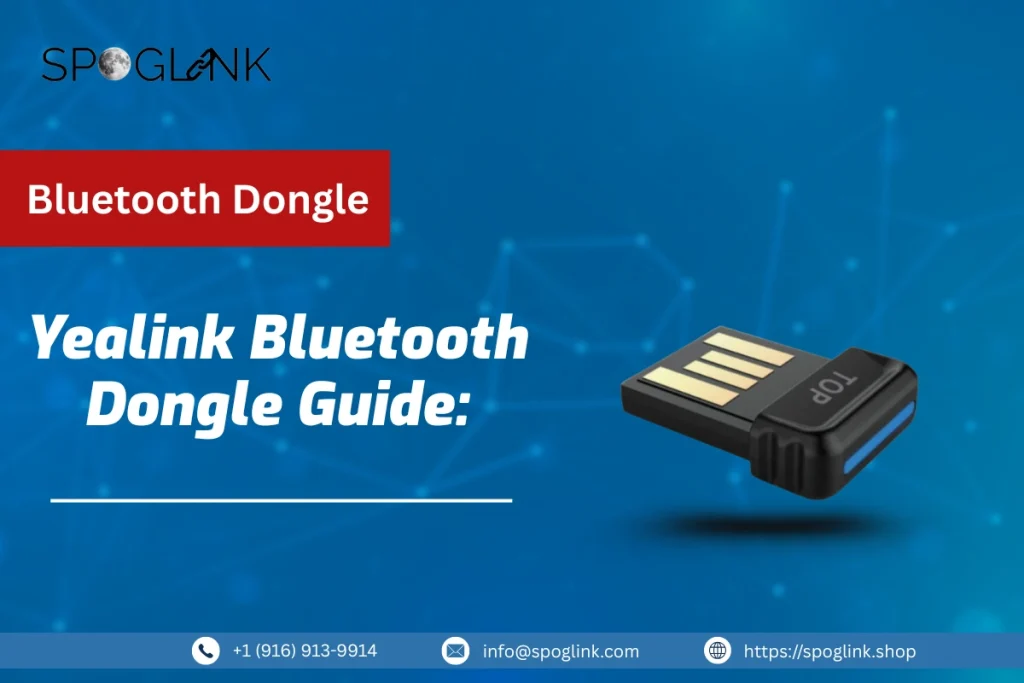
What is a Yealink Bluetooth dongle?
A Yealink Bluetooth dongle is a small, compact USB Bluetooth dongle, normally shaped like a small USB flash drive, developed to immediately add IP phone Bluetooth functionality to compatible Yealink devices. By plugging a Yealink USB dongle—such as the Yealink BT41 dongle or the advanced Yealink BT50—into a supported Yealink phone or computer, users can easily connect Bluetooth headsets and other wireless accessories.
For DECT settings, the Yealink WDD60 advances wireless connectivity across multiple devices, ensuring uninterrupted communication. As part of crucial Yealink phone accessories, these dongles boost Yealink phone Bluetooth performance while guaranteeing a very smooth Yealink compatibility, including verified Yealink BT50 compatibility across supported models.
Check out our Top picks of Yealink Bluetooth Dongles and get yours before it’s too late.
Types of Yealink Bluetooth Dongles
Let’s talk about one of the top brands that Spoglink is offering, Yealink. Why? Because it offers a variety of accessories and gadgets that are best suited for almost every and with every type of work condition and environment. Yealink offer numerous Yealink Bluetooth dongle options, which are carefully designed to add stress-free IP phone Bluetooth solutions that allow users to connect wireless headsets, mobile devices, and other Bluetooth accessories without any complicated setups. Top picks in the category of Yealinks include the Yealink BT41 dongle, the more advanced Yealink BT50, and the Yealink WDD60 for broader wireless range in DECT-based systems. As vital Yealink phone accessories, each USB Bluetooth dongle is designed to support dependable Yealink phone Bluetooth performance while holding strong Yealink compatibility across supported devices.
BT41 vs BT50
Wondering about the crowned Yealink products, well, here is the comparison between them both. The Yealink BT41 and Yealink BT50 are both very dependable Yealink Bluetooth dongle options. But they serve somewhat different needs. The Yealink BT41 dongle is perfect for basic Bluetooth connectivity, making it very suitable for standard headset pairing and everyday office use.
However, on the other hand, the Yealink BT50 offers more improved performance and broader Yealink BT50 compatibility, making it more suited for modern workplaces that demand stronger connectivity and upgraded wireless stability. Both these dongles are trusted Yealink phone accessories that are brought to market to simplify Yealink phone Bluetooth connections.
Compatibility with Yealink Phones & Headsets
One of the pivotal advantages of using a Yealink Bluetooth dongle is its vast compatibility with IP phones and Wireless headsets. Regardless, if you’re using a Yealink USB dongle like the BT41 or BT50, these accessories are designed to work evenly with supported Yealink desk phones and headsets. The Yealink WDD60 additionally extends wireless connectivity in DECT setups, guaranteeing flexible device pairing. Choosing the right USB Bluetooth dongle guarantees stable IP phone Bluetooth connections and helps users get the most out of their Yealink phone accessories without compatibility problems.
Common Use-Cases for Yealink Bluetooth Dongle
A Yealink Bluetooth dongle is perfect for professionals who want flexible, wireless communication without changing their existing setup. By adding an IP phone Bluetooth capabilities via a simple Yealink USB dongle, users can connect Bluetooth headsets, mobile phones, and other wireless devices smoothly.
Whether you are a call-center agent using a wireless headset, a hybrid employee converting to desk phones and mobile calls, or an office upgrading to Yealink phone accessories, dongles like Yealink BT41, Yealink BT50, and Yealink WDD60 deliver dependable Yealink phone Bluetooth connectivity with proven and easy plug-and-play functionality.
| User case scenario | How the Yealink Bluetooth dongle helps | Recommended Yealink dongle for best results |
| For office professionals using wireless headsets | Enables seamless Bluetooth pairing with Yealink IP phones for hands-free calling | Yealink BT41 dongle |
| For Hybrid & remote workers | Allows switching between desk phone and Bluetooth headset for flexible work setups | Yealink BT50 |
| For Call centers & support teams | Provides stable IP phone Bluetooth connectivity for long call hours | Yealink BT50 |
| For Businesses upgrading Yealink phone accessories | Adds Bluetooth functionality without replacing existing phones | Yealink USB dongle (BT41 / BT50) |
| DECT-based office environments | Extends wireless connectivity across multiple devices | Yealink WDD60 |
| Users needing verified compatibility | Ensures smooth pairing with supported phones and headsets | Yealink BT50 (enhanced compatibility) |
Things to Need To Consider Before Buying a Bluetooth Dongle

Before making any purchase, make sure that you know these points:
- Universal compatibility:
Make sure that the dongle you are about to purchase is capable of working with your operating system (for example, Windows 10/11, macOS, Linux, etc.) and supports the devices you either need to connect or are planning to connect with.
- Plug-and-play Installation:
Most of the modern dongles need no drivers, though, but some may still need software installations for full functionality (for example, audio profile support).
- Multi-device Pairing:
Advanced models allow switching between multiple paired devices without re-pairing, improving workflow efficiency.
- Compact Design:
Smaller dongles are less likely to block adjacent USB ports, particularly on laptops with tightly spaced ports.
- Interference Resistance:
Look for models like Yealink BT41, Yealink BT50, and Yealink WDD60 that have adaptive frequency hopping to minimize disruptions from Wi-Fi, microwaves, or other 2.4GHz devices.
How Bluetooth Dongles Boost Connectivity:
Bluetooth dongles are compact USB adapters that right away add wireless connectivity to devices lacking built-in Bluetooth capabilities. These adaptable tools bridge the gap between legacy and modern technology, allowing smooth pairing with a wide range of peripherals such as speakers, headphones, keyboards, mice, smartphones, and audio systems.
Whether upgrading older hardware or enhancing user experience across different setups, Bluetooth adapters provide a cost-effective and plug-and-play solution for wireless audio and data transfer. Below are common real-world applications where Bluetooth dongles deliver significant value.
PCs and Laptops Without Built-In Bluetooth
Many desktops and older laptops don’t support native Bluetooth, which limits their capability to connect wirelessly to modern devices. A USB Bluetooth adapter right away stimulates wireless connectivity, allowing users to pair:
- Wireless headphones and earbuds for private listening.
- Bluetooth speakers for improved audio output.
- Keyboards and a mouse for a clutter-free workspace.
- Smartphones for file transfers and tethering.
Gaming Setups and Chairs
Various old model gaming chairs, mainly the non-premium models, do not come with built-in Bluetooth. A dongle allows gamers to wirelessly connect their chair, headset, or system to a PC or console for captivating audio without the stressful clutter of cables.
- Stream game audio and voice chat directly connected to Bluetooth headphones.
- Use wireless headsets with low-latency dongles for instant communication without lagging.
- Connect sound-ready gaming chairs for instant feedback and immersive audio.
- Allows multiple devices to switch for console and PC gaming.
Smart TV’s and Home Entertainment:
Many older, budget-friendly TVs lack the option for Bluetooth, making it difficult to connect wireless headphones or external speakers. A Bluetooth adapter transforms any TV with a USB port into a wireless-ready entertainment hub.
- Stream audio from movies, shows, or games to Bluetooth headphones for late-night viewing.
- Connect portable speakers for improved sound quality.
- Pair hearing aids or assistive listening devices for accessibility.
- Use with streaming sticks or set-top boxes that support Bluetooth output.
Car Audio System and In-vehicle Connectivity
Numerous old models of cars with basic stereos limited to FM radio or CD players. A Bluetooth USB adapter brings new life to these systems by allowing wireless music streaming and hands-free calling.
- Plug into the car’s USB port or use a power adapter (for a cellphone or cigarette lighter). for continuous power.
- Stream music from smartphones through Bluetooth without additional cables.
- Boosting hands-free calling through the car’s speaker using built-in microphones.
- Pair with GPS devices or voice assistants for safer navigation.
Expert Point of View:
When you are choosing a Bluetooth dongle, make sure to check compatibility with your operating system (like Windows, macOS, Linux, or Android TV). Go for models with external antennas for better signal strength, mainly in environments with interference. For critical uses like gaming or voice calls, prioritize adapters supporting advanced codecs like aptX, AAC, or SBC for clearer audio and reduced latency.
| Use Cases | Recommended Bluetooth Versions | Key Features Needed |
| Home Offices (keyboard/mouse) | Bluetooth 5.0 + | Stable connection with low power |
| Gaming (audio) | Bluetooth 5.2 with aptX LL | Low-latency, high-quality audios |
| TV Audio Streaming | Bluetooth 5.0 with aptX | A2DP support, audio stability. |
| Car stereo Combination | Bluetooth 4.2 or 5.0 | Hands-free calling (HFP), music streaming (A2DP). |
How to pick the best Yealink Bluetooth Dongle For Your Needs:
Choosing a suitable Yealink Bluetooth USB dongle is an important part of wireless connectivity between your computer and other peripheral devices, for example, keyboards, mice, headphones, speakers, and smartphones. With numerous options available on the market, it’s important to evaluate key technical and practical factors to guarantee compatibility, performance, and long-term reliability. This comprehensive guide breaks down all the important points, helping you make an informed decision based on your specific use case and environment.
Note that not all Bluetooth dongles are created equally. Choosing the wrong model can lead to connectivity issues, slow data transfer, or incompatibility with your overall operating system. Always check the specification before purchasing to avoid frustration and unnecessary expenses.
FAQ’s About Bluetooth Dongles
Q1: Can a Bluetooth Dongle be added to any device?
A: In many user cases, yes—any device with an available USB port can use a USB Bluetooth adapter to achieve wireless connectivity. This means many desktops, laptops, gaming consoles, smart TVs, and even some of the media players. However, compatibility depends on a few key factors:
- Operating System Support:
The device must run an OS that supports Bluetooth (e.g., Windows 7+, macOS, Linux, Android). Some older systems may require driver updates or external connectors to work properly.
- USB Port Type:
Most Bluetooth dongles use standard USB-A ports, but many types of adapters are available in the market for USB-C or micro-USB devices.
- Power Requirements:
Some low-power devices (like certain Raspberry Pi models) may struggle to power the dongle without a powered USB hub.
- Driver Availability:
While many adapters are plug-and-play, specialized or older models may need manual driver installation.
Always check the manufacturer’s compatibility list before purchasing to ensure seamless integration with your device.
Q2: How can a Bluetooth USB dongle improve a PC’s capabilities?
A: A Bluetooth USB dongle very much improves a PC’s overall functionality by allowing wireless communication with a wide range of modern peripherals. Without built-in Bluetooth, many users are limited to wired connections. With a dongle, your PC can:
- Connect Wireless Audio Devices:
You can stream music, podcasts, or videos using Bluetooth headphones, earbuds, or speakers for a clutter-free listening experience.
- Enable Hands-Free Calling:
Pair a Bluetooth headset or earpiece for clear voice calls during meetings, gaming, or VoIP applications like Zoom or Skype.
- Use Wireless Input Devices:
Connect Bluetooth keyboards, mice, drawing tablets, or game controllers to reduce cable clutter and improve workspace flexibility.
- Sync with Smart Devices:
Transfer files from smartphones, tablets, or fitness trackers directly to your PC via Bluetooth.
- Support Modern Peripherals:
Use devices like wireless presentation remotes, barcode scanners, or medical equipment that rely on Bluetooth technology.
Most modern Bluetooth 4.0+ or 5.0 dongles offer low latency, stable connections, and energy-efficient performance, making them ideal for both productivity and entertainment.
Q3: How is a Bluetooth adapter for a PC installed?
A: Installing a Bluetooth USB adapter is a straightforward process that typically takes just a few minutes. Follow these step-by-step instructions for a successful setup:
- Plug in the Dongle:
Insert the Bluetooth adapter into an available USB port. For best performance, use a USB 2.0 or higher port directly on the computer (avoid unpowered hubs).
- Wait for Automatic Detection:
Most modern operating systems (Windows 10/11, macOS) will automatically detect the device and install generic Bluetooth drivers.
- Install Manufacturer Drivers (if needed):
If the dongle came with a CD or requires specific features (e.g., Bluetooth 5.0 enhancements), download the latest drivers from the manufacturer’s official website.
- Enable Bluetooth:
Go to your PC’s settings (e.g., Settings > Devices > Bluetooth & other devices on Windows) and turn on Bluetooth.
- Pair Your Device:
Put your Bluetooth accessory (headphones, speaker, etc.) into pairing mode (usually by holding a button until a light flashes), then select it from the list of available devices on your PC.
- Test the Connection:
Play audio, make a test call, or use the peripheral to confirm the connection is working properly.
Q4: Can a Bluetooth dongle cause interference or performance issues?
A: While Bluetooth is designed to be stable, certain conditions can affect performance:
- Wireless Interference:
Other 2.4 GHz devices (Wi-Fi routers, microwaves, cordless phones) can interfere with Bluetooth signals. Using Bluetooth 5.0+ helps mitigate this with improved frequency hopping.
- USB Port Quality:
Low-power or damaged USB ports may not supply enough power, leading to disconnections. Use a powered USB hub if necessary.
- Physical Obstructions:
Walls, metal objects, or large distances between devices can weaken the signal. Keep the dongle in an open area for best results.
- Multiple Connected Devices:
Some dongles struggle with more than 3–4 simultaneous connections. Check the specs for multi-device support if needed.
- Outdated Drivers:
Failing to update drivers can result in pairing failures or audio lag. Regularly check for firmware or software updates.
Contact our team of experts to guide you through the whole process of installations and how our Yealink Bluetooth dongle can help you get good performance.
✍️ Author’s Bio
This article is crafted by Spoglink’s Research & Content expert, with a group of technology specialists dedicated to helping U.S. businesses make smarter IT decisions. Our experts collaborate closely with IT managers, system integrators, and hybrid teams to evaluate cutting-edge collaboration tools from brands like Yealink, Grandstream, OWL Labs, Snom, TP-Link, and Ubiquiti Networks. Through hands-on testing in real-world business environments, the team delivers actionable insights and unbiased reviews—empowering organizations to choose the right technology for seamless communication, conferencing, and connectivity.


